
Instagram how-to · Reviewed 2026-04-27
How to Cancel a Scheduled Post on Instagram
Start Here
Yes. You can cancel a scheduled Instagram post before it publishes. Start in the place where you scheduled it, then open the scheduled post and delete it, move it back to drafts, or reschedule it before the publish time.
Do This In Order
- 01Find the scheduled queue.
- 02Open the scheduled post.
- 03Delete, move to draft, or reschedule it before publish time.
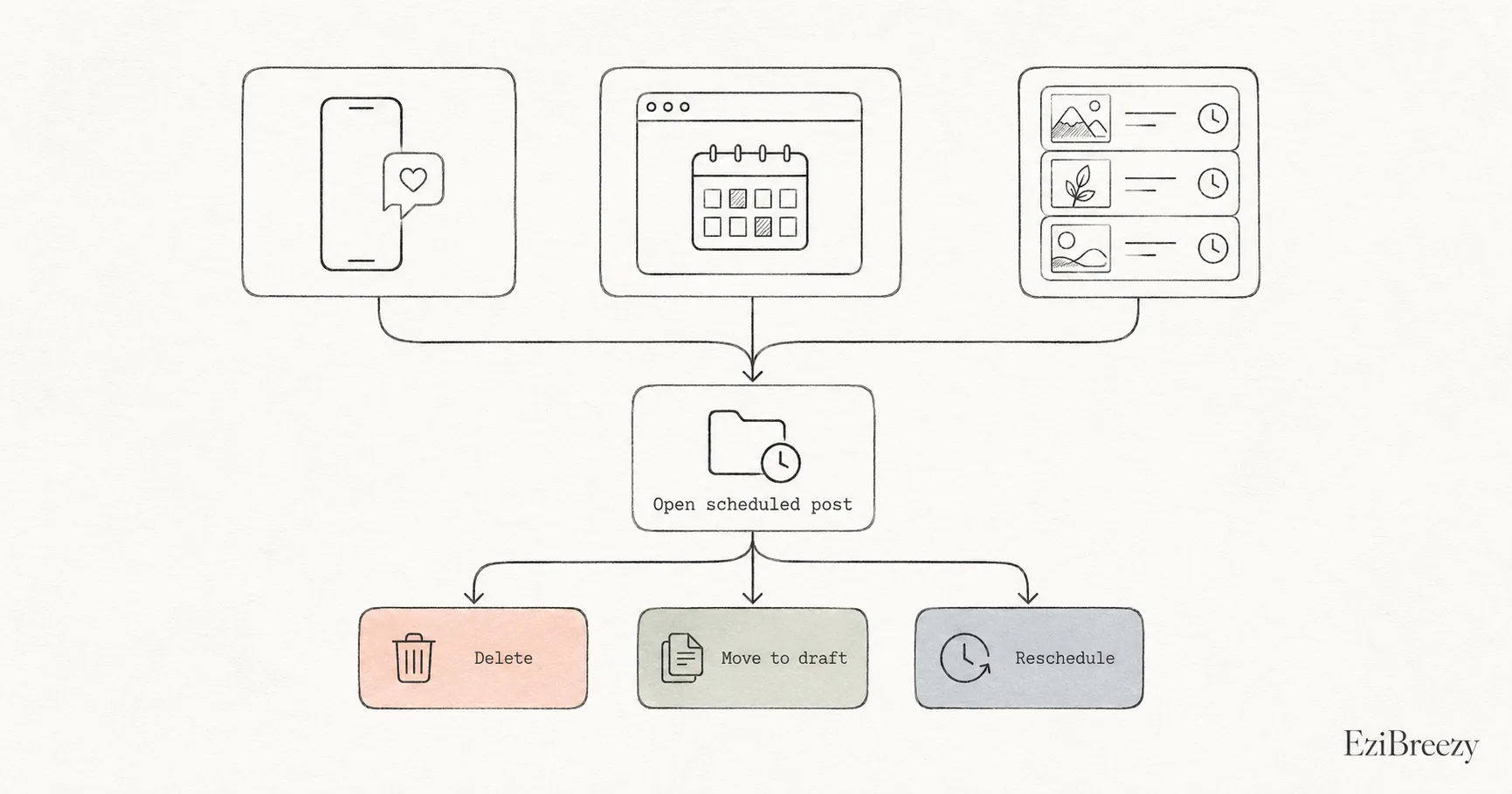
Cancel in the Instagram app
If you scheduled the post inside Instagram, open the app and go to your profile menu. Look for Scheduled content, Scheduled posts, or the closest scheduled-content area your app version shows.
Open the scheduled post, then use the post options to delete it, reschedule it, or share it now. Deleting removes it from the scheduled queue before it publishes.
If you cannot find the scheduled post in Instagram, check whether it was created in Meta Business Suite or a scheduler instead. Scheduled posts usually need to be canceled from the same surface that created them.
Cancel in Meta Business Suite
If you scheduled the post through Meta Business Suite, open Business Suite on desktop or mobile and go to the Planner or Content area. Find the post in the scheduled view.
From there, open the post actions and delete it, move it to drafts, or reschedule it for another time. This is often the better place to check if the post was planned alongside Facebook content.
If a post has already published, canceling no longer applies. You would need to delete or edit the live Instagram post directly.
Cancel in a scheduler
If you scheduled the post through a third-party tool like Maeve Social, cancel it inside that scheduler. Open the calendar or queue, find the post, and delete it or move it back to drafts.
This matters because many schedulers hold the post until the scheduled time, then publish through Instagram's approved publishing flow. Canceling it in the scheduler before publish time should stop it from going live.
Rescheduling is often better than deleting if the content is still useful but the timing changed.
Useful Next Steps
Features, tools, and guides that pick up where this answer leaves off.
Schedule Instagram posts with less last-minute changes
Plan, preview, and schedule Instagram content from one workspace so the queue stays clean and cancellations are rare.
Other Instagram How-Tos
Keep going inside the Instagram cluster, or head back to the full list.