
The whole month, on one page
Every post, on every account, in one place. You can see what that day's doing without opening anything, drag a post to a different day when plans change, and stick a note on a date when the reminder isn't a post yet. The empty weeks show up before they turn into a scramble.
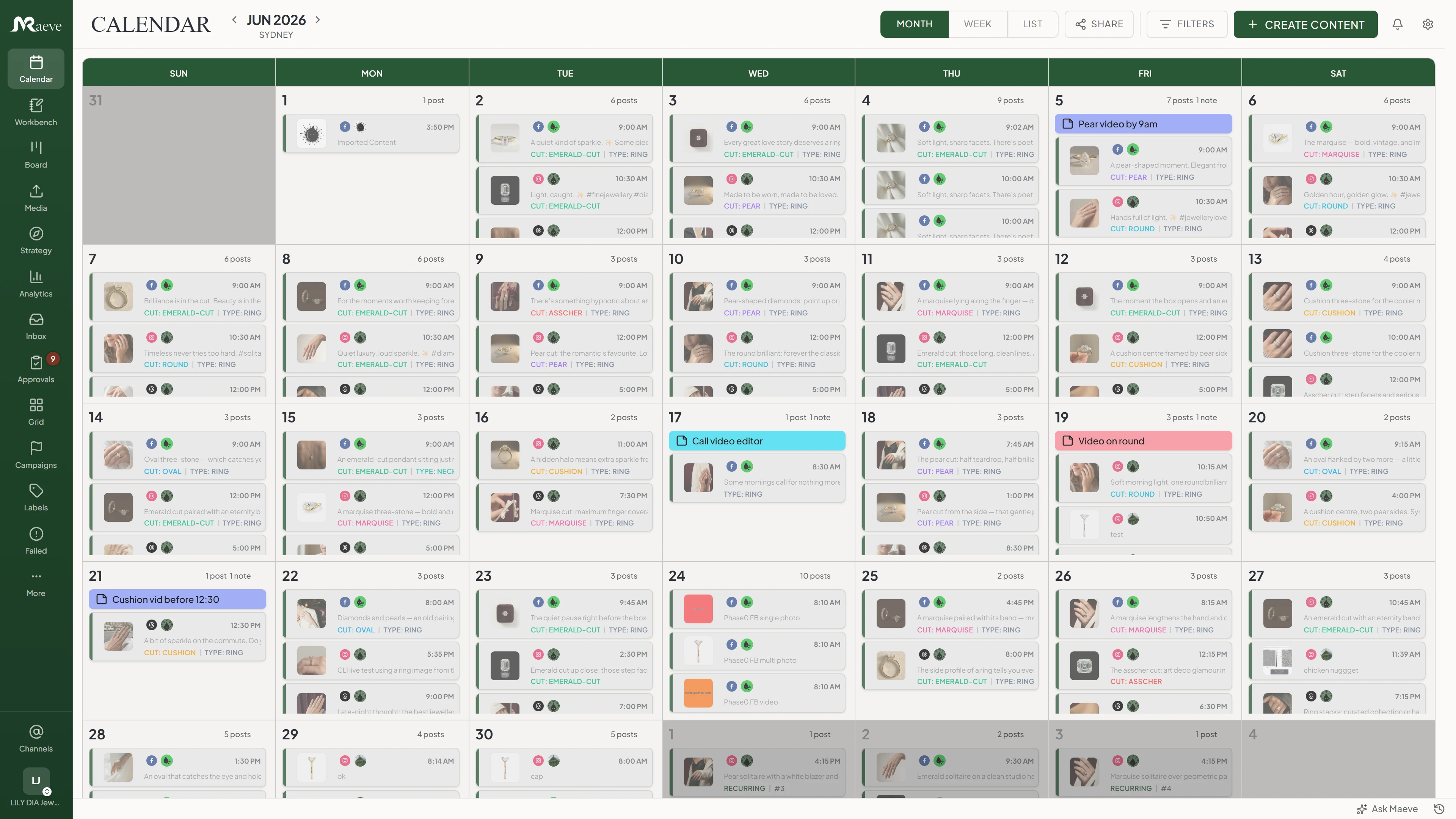
Zoom in to the week you're actually working
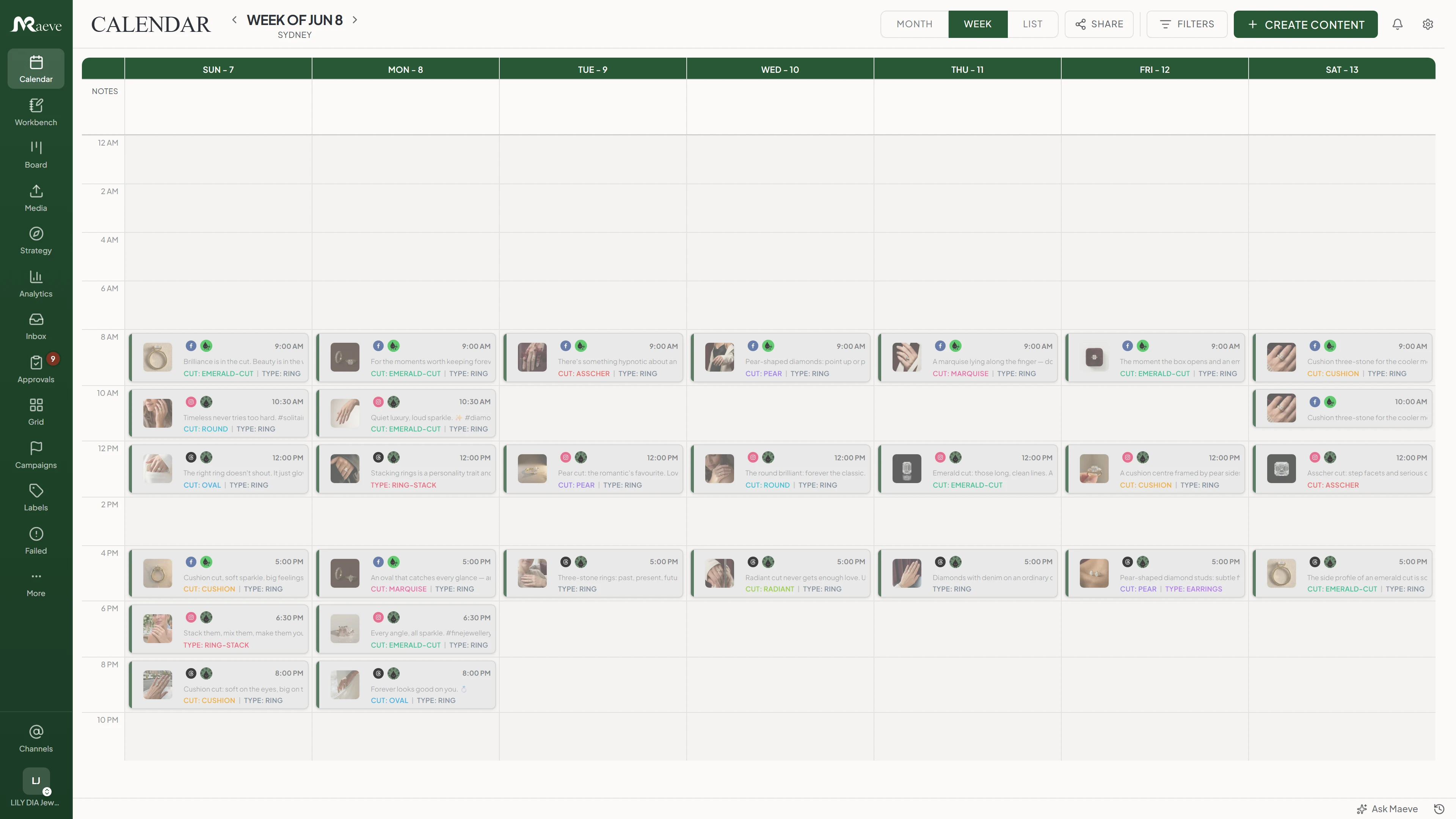
Switch to week and the same posts spread across seven days in two-hour blocks, twelve of them covering the full day. The cards get bigger and a crowded Tuesday is obvious.
Drag one into a different block and it takes that block's hour but keeps its minutes, so a 3:47 post dropped on the 8am block becomes 8:47. Drop it on another day in month view instead and it keeps its time entirely.
Or work through it as a list
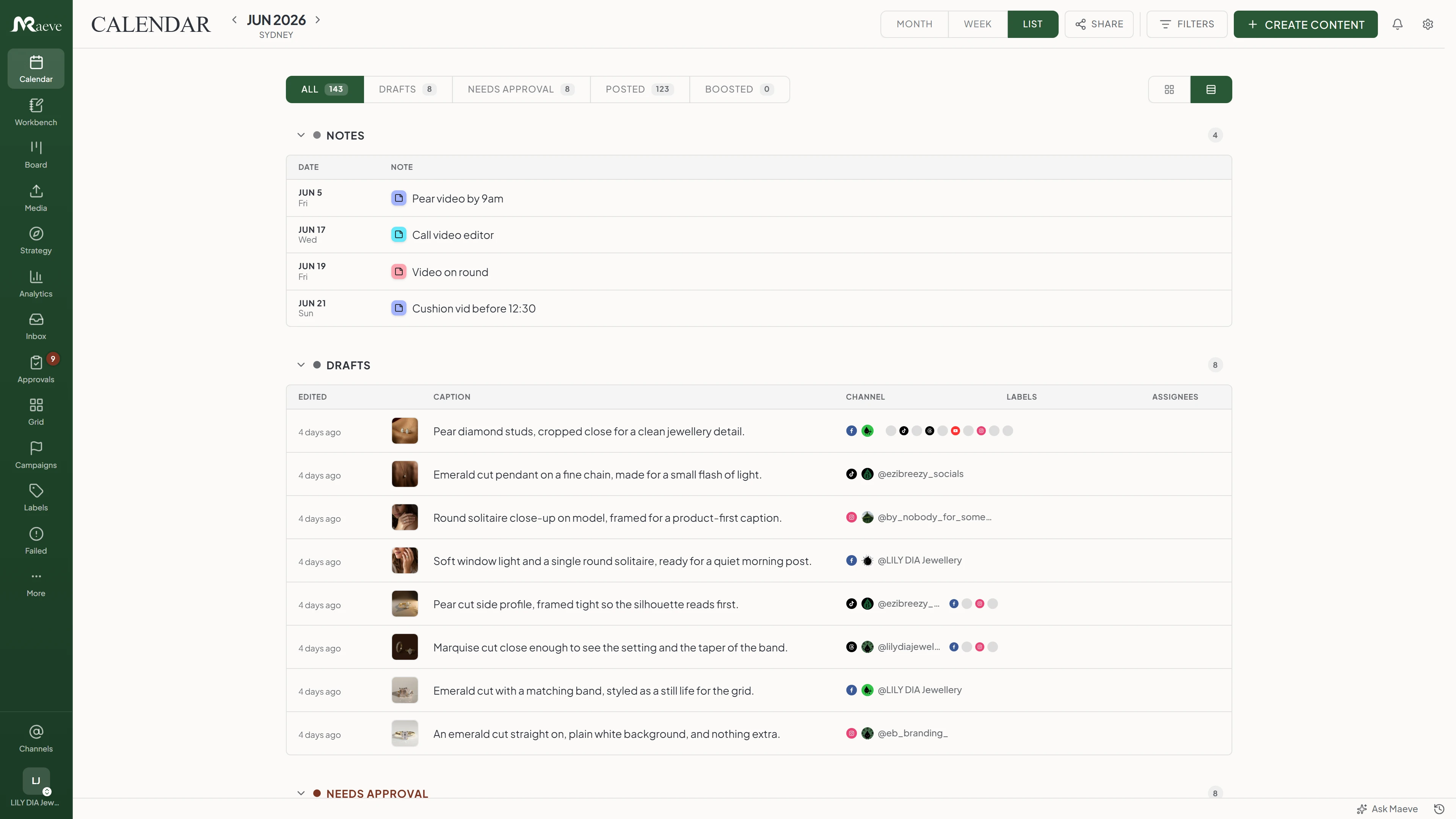
List view drops the grid and groups the same posts by where they are: In Queue, Drafts, Needs Approval and Posted, each with a count. Anything with changes requested sits under Needs Approval, and failed posts sit in the queue. It's how you clear a stuck approval or scan every draft without the noise of the grid, and there's a density control when you want more rows on screen.
Show only what you're looking for
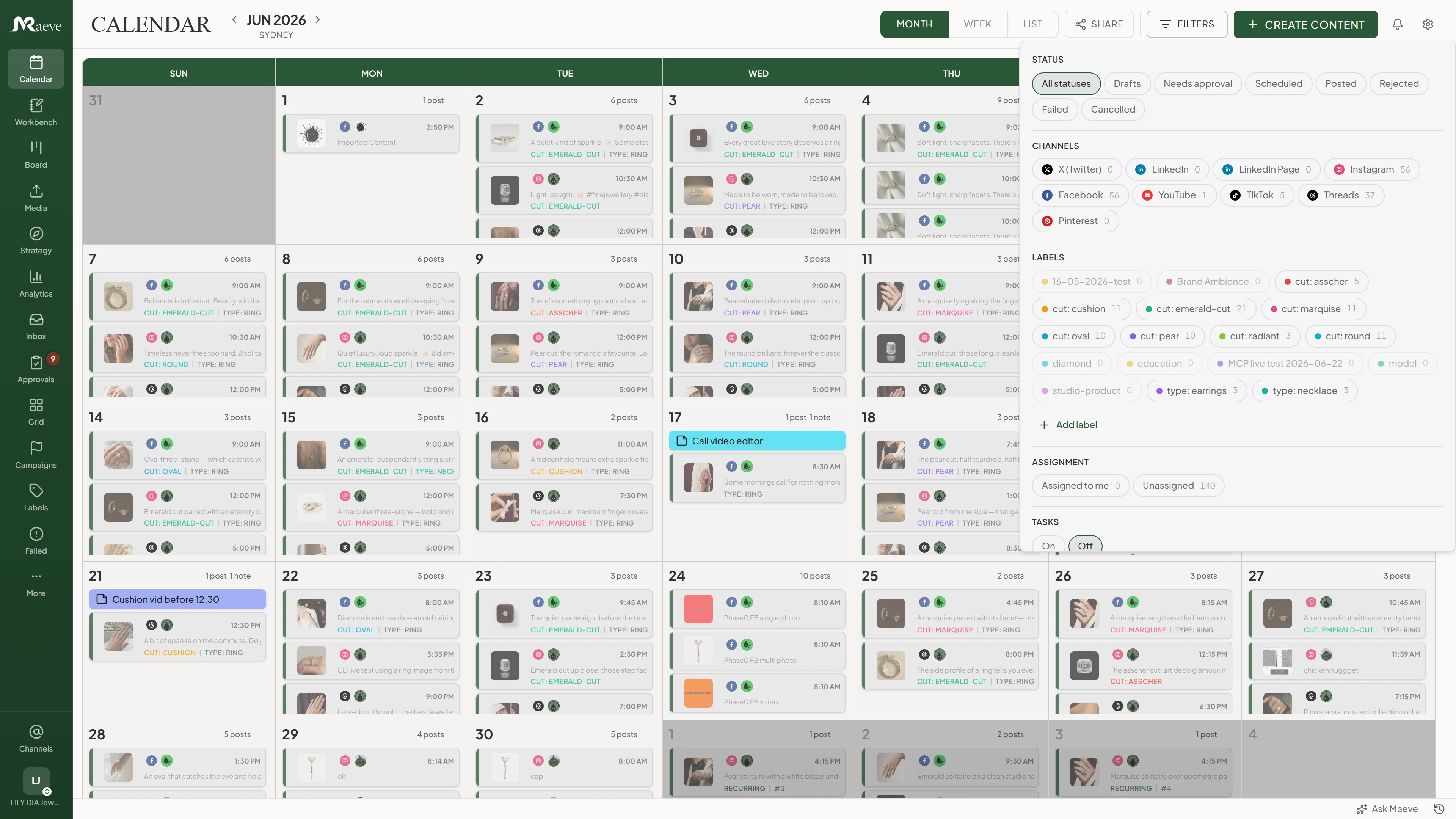
Filter by status, by channel, by label, or by who it's assigned to, and stack as many as you like. Each channel and label carries a count, so you can see what a filter will do before you turn it on. Whatever you've set stays put when you switch between month, week and list, and Clear all puts it back.
Send your client the plan, not a login
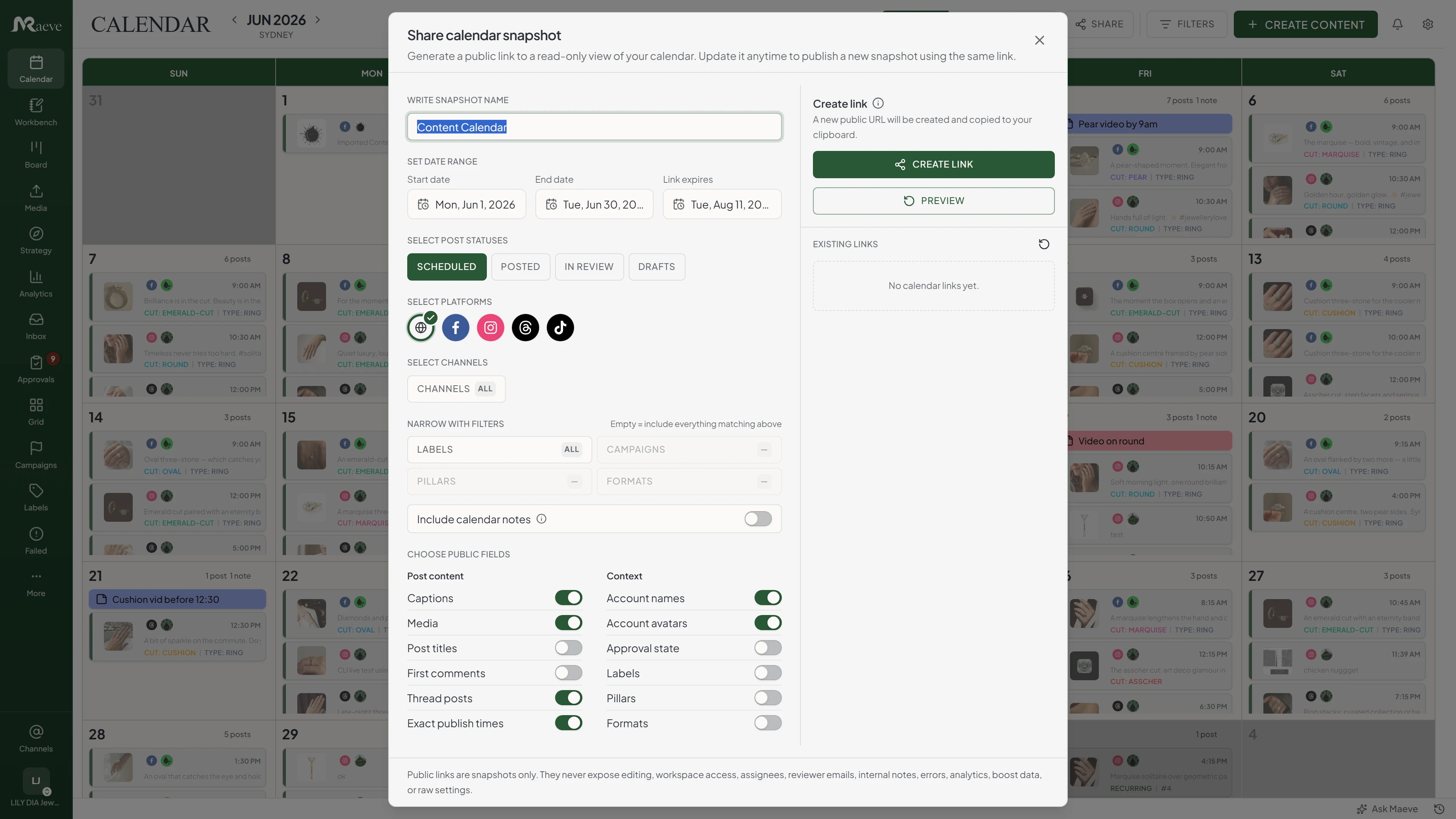
A share link opens a read-only calendar for the date range you pick, with no account at the other end. You choose which statuses and accounts go in and exactly which fields a reader can see, and you set a date for the link to expire.
It's a snapshot, so what you send stays as it was when you made it. Carry on editing and the client keeps seeing the version you shared until you update it, which is usually what you want when someone is midway through reviewing. Sharing is on Standard and above, for managers and editors.
What the calendar does
One date-first view of the whole posting schedule, with enough structure to plan a month and enough safety that nothing goes out at the wrong time.
Questions
What is a social media content calendar?
A social media content calendar is a schedule for upcoming posts across your channels. It shows what is drafted, pending approval, scheduled, sent, or failed, so you can plan campaigns by date instead of managing each post in a separate tab.
How is this different from a content calendar template?
A template helps you plan the month in a static file. Maeve is a live calendar, so each card is a real post that can move from draft to approval to scheduled and sent. If a grid isn't the shape you want, the Workbench opens the same posts as planning pages and tables.
What's the difference between the calendar, the Workbench, and the Board?
All three share the same posts. Use the calendar to schedule and watch what's going out, the Workbench to build content in tables and planning pages, and the Board to move posts through kanban approval lanes. Switching views doesn't duplicate anything.
Can I use this as a social media posting schedule?
The calendar is the visual posting schedule for Instagram, Facebook, Threads, LinkedIn, X, TikTok, YouTube, Pinterest, and Google Business Profile. Plan the month, work the week, or open list view to see the queue auto-sorted into drafts, approvals, and posted.
Is this a social media post planner or a marketing content calendar too?
Both. It works as a social media post planner for a single account and as a marketing content calendar when a team is planning campaigns across all nine platforms together. Every card is a real post, not a row in a spreadsheet, so planning the month and publishing it happen in the same place.
Does this work across all 9 platforms?
All nine: Instagram, Facebook, Threads, LinkedIn, X, TikTok, YouTube, Pinterest, and Google Business Profile. They share one calendar, one filter set, and one workspace timezone.
Can I drag a scheduled post from one day to another?
Yes, in month and week view, and the move applies straight away. In month view it keeps its time and just changes day. In week view it takes the hour of the block you drop it in and keeps its minutes, so 3:47 dropped on the 8am block becomes 8:47. A post going to several accounts moves them all together.
Can I add notes to specific days that aren't posts?
Yes. Press the plus on a day in month or week view and add a note, up to 1,000 characters in a colour from your workspace palette. Use them for filming days, launches, holidays or client deadlines. A note is text, a colour and one date, so there's no title, no time and no repeat, and deleting one is immediate with no undo.
What does the list view show?
The same posts, grouped by where they are: In Queue, Drafts, Needs Approval and Posted, each with a count. Anything with changes requested sits under Needs Approval, and failed posts sit in the queue. There's a density control for compact or full rows. Useful when the grid adds noise and you want to work one group at a time.
How do I see what's failed without opening every post?
The tile tells you. Failed, pending approval, draft, scheduled and posted each read differently on the card, so you can scan a week without clicking anything. Filter the calendar to Failed when you want to sweep them in one pass.
Can I filter the calendar?
By status, channel, label and assignment. Status is one at a time; the rest stack. Each channel and label shows how many posts match before you turn it on. Whatever you set stays applied when you switch between month, week and list, and Clear all resets it.
Can I share the calendar with a client without a login?
Yes, on Standard and above, if you're a manager or an editor. You pick the date range, the statuses and accounts to include, and exactly which fields a reader can see, then set a date for the link to expire. It's a snapshot, so the client keeps seeing the version you sent until you update it. A snapshot covers up to 370 days and 2,000 posts, and drafts with no date on the calendar are left out.
What can't I drag?
A post that has published, one that failed, one that was imported from the network, and one that's publishing right now. A post with changes requested stays put too, so open it and change the schedule there. Nothing can move into the past. A post waiting on approval can be moved, and moving it keeps the approvals it already has.
Does the calendar handle timezones?
Everything runs on the workspace timezone, and the calendar header shows which city that is. A teammate opening it from another country sees the same times you do, because there's no personal timezone setting to drift out of sync. A 9am post is the 9am post, daylight saving included.
Can I set up recurring posts?
Yes. Open the post's Schedule tab and turn on Repeat, then choose which weekdays you want it and how many weeks apart. Maeve creates each post in the series and you tell it when to stop. Repeat works with one account at a time, and a repeating post can't go through approvals.