
See where every post is up to
It's Trello, but the cards are your actual posts, and they move across on their own as the work moves. Nobody has to remember to drag anything for the board to be right.
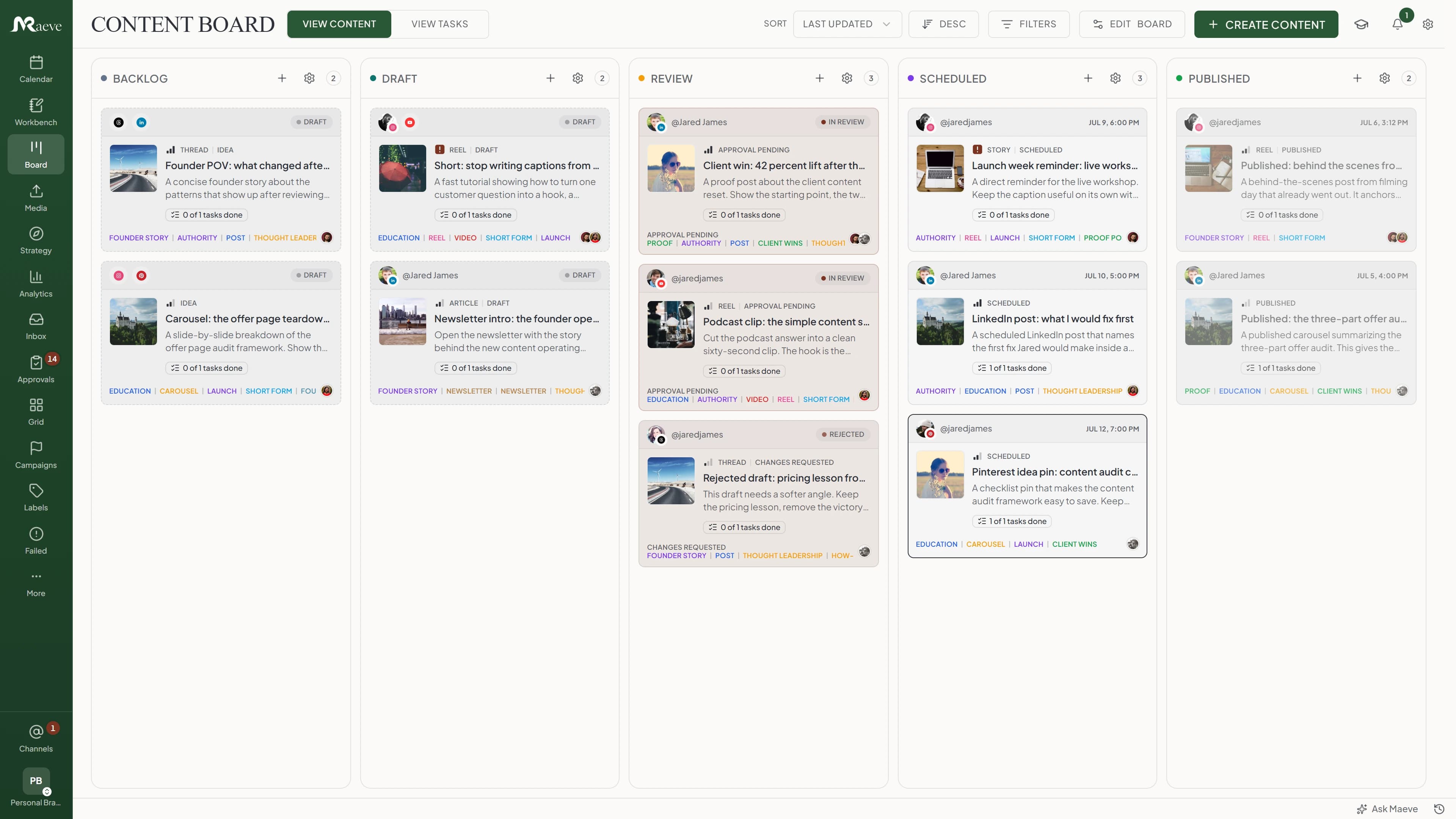
The columns look after themselves
There's nothing to set up. The Board has five columns, Idea, Draft, Review, Scheduled and Published, and a post sits in whichever one matches where it actually is. Send something for approval and it's in Review. Schedule it and it's in Scheduled. Nobody drags it there.
Review is fed by the same pipeline that approval software for social media teams runs on, so your board and your sign-offs can't drift apart. Approved work waits there until someone schedules it.
That's also why you can't rename the columns or add your own. Each one is a real state a post can be in rather than a label you stuck on it. If your workspace doesn't run an approval step, a manager can hide Review, which also takes its cards off the board until you show it again.
You can still move things by hand
Drag a card between Idea and Draft and the post's stage really does change. It's the same control as the status chip in the editor, and it lands in the post's history like any other edit.
Once a post has been built out for its channels, that's settled and the card stops moving, because its column is worked out from the channels themselves. The other three columns can't be dropped into at all. Nothing goes live because somebody dragged it.
Not every job is a post
There's the shot to film, the caption to rewrite, the client to chase. Those get their own board behind the View Tasks tab, in their own columns from Backlog to Done, and a task can point at the post it belongs to. The work around a launch stops scattering across three other apps.
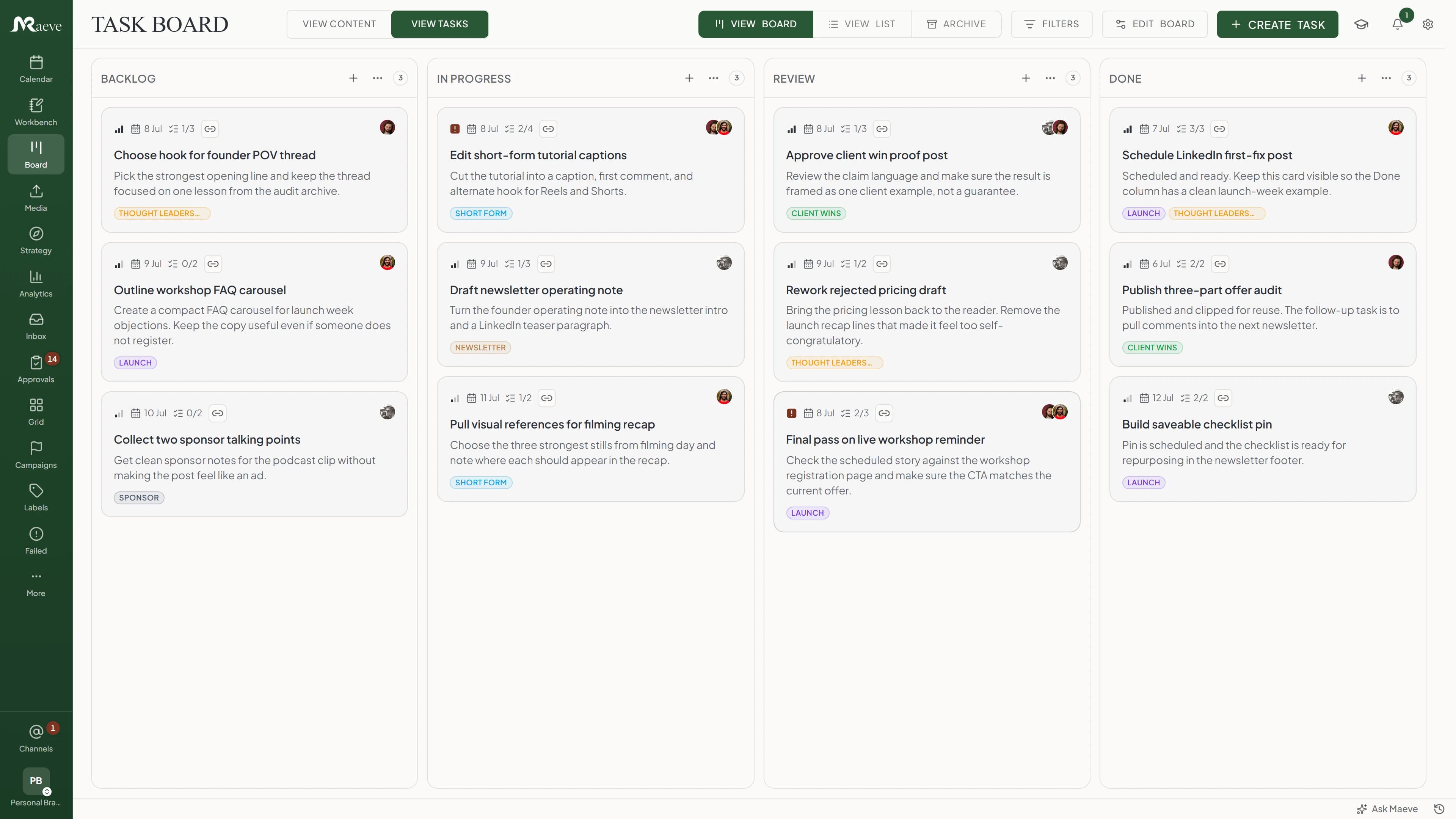
Everything about a job in one place
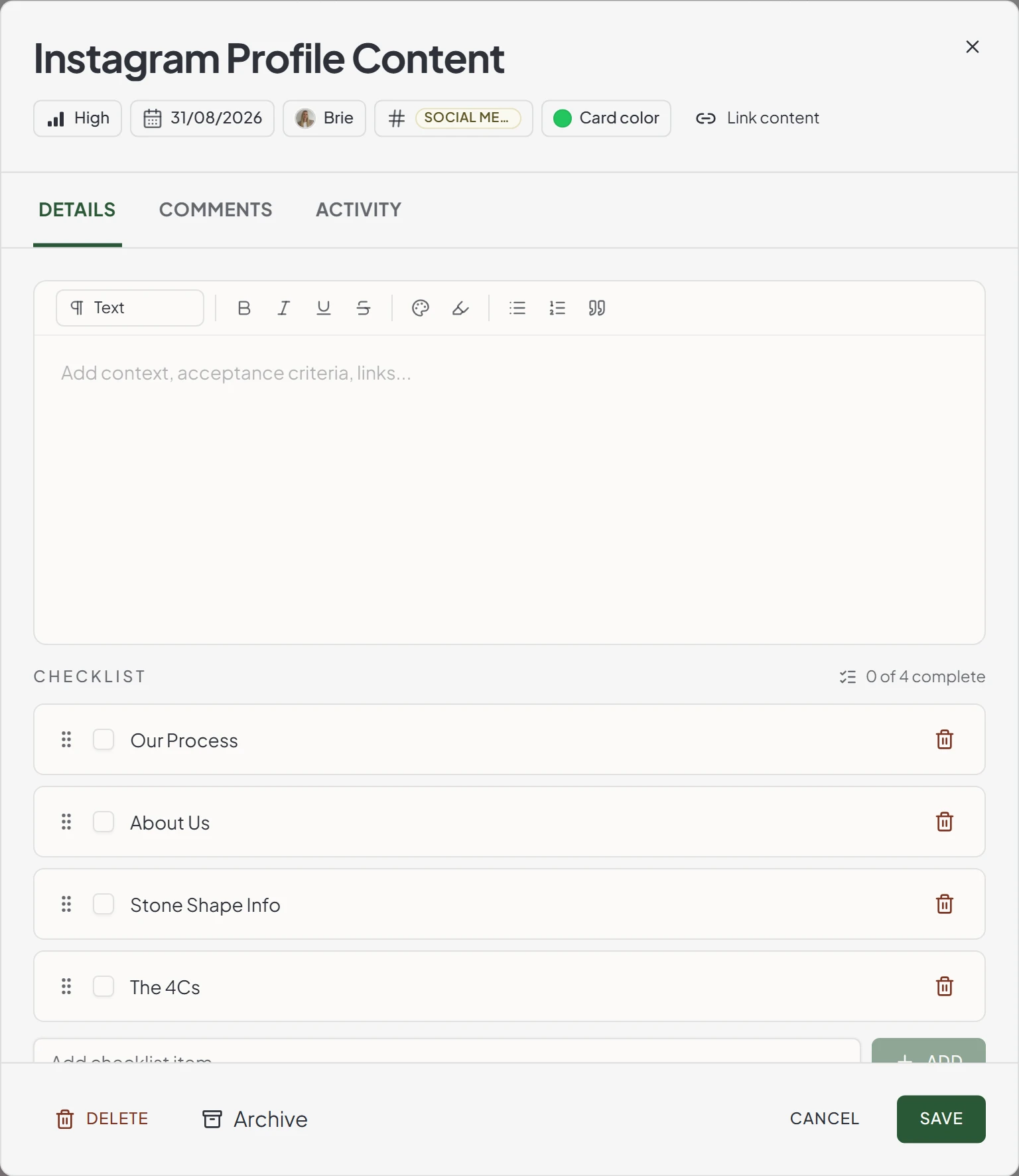
Priority, due date, who's on it, labels and a link to the post it belongs to, all along the top. A task can have several people on it, not just one. Underneath there's room for the actual brief, a checklist you tick off as you go, and the reference shots.
Comments and the full history sit on their own tabs, so the argument about the caption lives on the task instead of in someone's DMs. Everyone in the workspace can read the task board. Creating and editing tasks is for managers and editors.
How the board works
The columns and the cards are built around a post rather than a generic ticket, so the board stays honest about where the work really is without anyone maintaining it.
Questions
What is a social media kanban board?
A kanban view of social media posts grouped by production stage. The Board is Maeve's version. Five columns from Idea to Published, and every card is a real draft rather than a note about one.
How is the Board different from Trello or Notion?
Trello and Notion can run a kanban, but the card is a card. It doesn't know what your post is, when it goes live, or whether the publish step succeeded. The Board's card is the post itself, so the lane it sits in is the state the post is in.
How is the Board different from the Calendar?
The Calendar is date-first and shows everything you have scheduled. The Board is stage-first and shows the posts that have been put on it. Use the one that fits the question you're asking.
How is the Board different from the Workbench?
The Workbench is for planning before there's a draft. Tables, research notes, series builders. The Board is for the drafts themselves, once they exist.
Can I add my own columns?
No. The Board has five columns and that's the whole set: Idea, Draft, Review, Scheduled, Published. They can't be renamed, recoloured, reordered or added to, because each one is a real state a post can be in rather than a label. It means the column a card sits in is always true.
How does a post end up in the right column?
On its own. The column comes from the post's own status, so sending something for approval puts it in Review and scheduling it puts it in Scheduled. Approved work stays in Review until someone gives it a time.
Which columns can I drag into?
Idea and Draft. The other three are worked out from what the post is doing, so they can't be dropped into. A post that's already been built out for its channels stops being draggable as well, because its column then comes from the channels.
Does moving a card change the post?
Yes. Dragging between Idea and Draft changes the post's stage, and it's recorded in the post's history like any other edit. It's the same control as the status chip in the editor. Since Scheduled and Published can't be dropped into, a drag can never put a post live.
Can I hide a column?
Review, if your workspace doesn't run an approval step. It's the only one, and only a manager or editor can change it in board settings. Worth knowing: hiding Review also hides the cards sitting in it until you turn it back on.
How does content get onto the Board?
Posts you create from the Board are on it from the start. Anything made elsewhere you pull in from the plus on a column header, which offers both new content and a picker of existing posts. So the Board is not automatically everything in the workspace.
One card per post, or one per channel?
Under Card grouping in board settings. Automatic keeps a cross-platform post as one card while its channels agree, and splits it into per-channel cards as soon as they don't, whether that's a different column, a different status or a different time. One card per channel always splits it. The setting is personal and saved in your browser, though board settings itself is manager and editor only.
What's on a task, and how is it different from a post?
Not every job is a post. A task is the shoot to book, the caption to rewrite, the client to chase. It carries a priority, a due date, an assignee, labels, a checklist, attachments, comments, and an activity history, and it can link to the post it belongs to. Tasks live on their own tab beside the content board.
Does it work for a team or just for one person?
Both. On your own it's a personal queue. With a team you add assignees, a card in review says so on its face in the wording of whichever review is running, and the assigned-to-me filter leaves only your work on screen. Dragging a card needs permission to edit drafts, and adding or removing content is manager and editor only.
Can I filter the Board?
Three filters, stacked: platform, assignee, and label. Sorting is separate, by last updated, date created, scheduled date or priority, each way round. Filtering by status, pillar or format isn't shipped, though pillars and formats do show on the cards.
Where do failed posts appear?
On the Board, in the column they were already in, with a Failed badge on the card. Open the card and it takes you to the channel that failed, and to a chooser first if more than one did. Failed Post Recovery is where you read the platform message, reconnect an account and retry.
Does the Board work on mobile?
It scrolls sideways on a phone or a tablet and every card opens, so it's not read-only. Dragging cards between columns is a desktop thing today.
Does it work for every platform?
Instagram, Facebook, Threads, LinkedIn, X, TikTok, YouTube, Pinterest, and Google Business Profile. Cards on the Board show channel avatars for whichever networks the post will publish to.