
Upload it once, then use it forever
Every photo and video your team uses, in one place. Pick a file from the library whenever you write a post instead of hunting through Drive for the right version. Each one also tells you where it's already been used, so you're not posting the same shot twice.
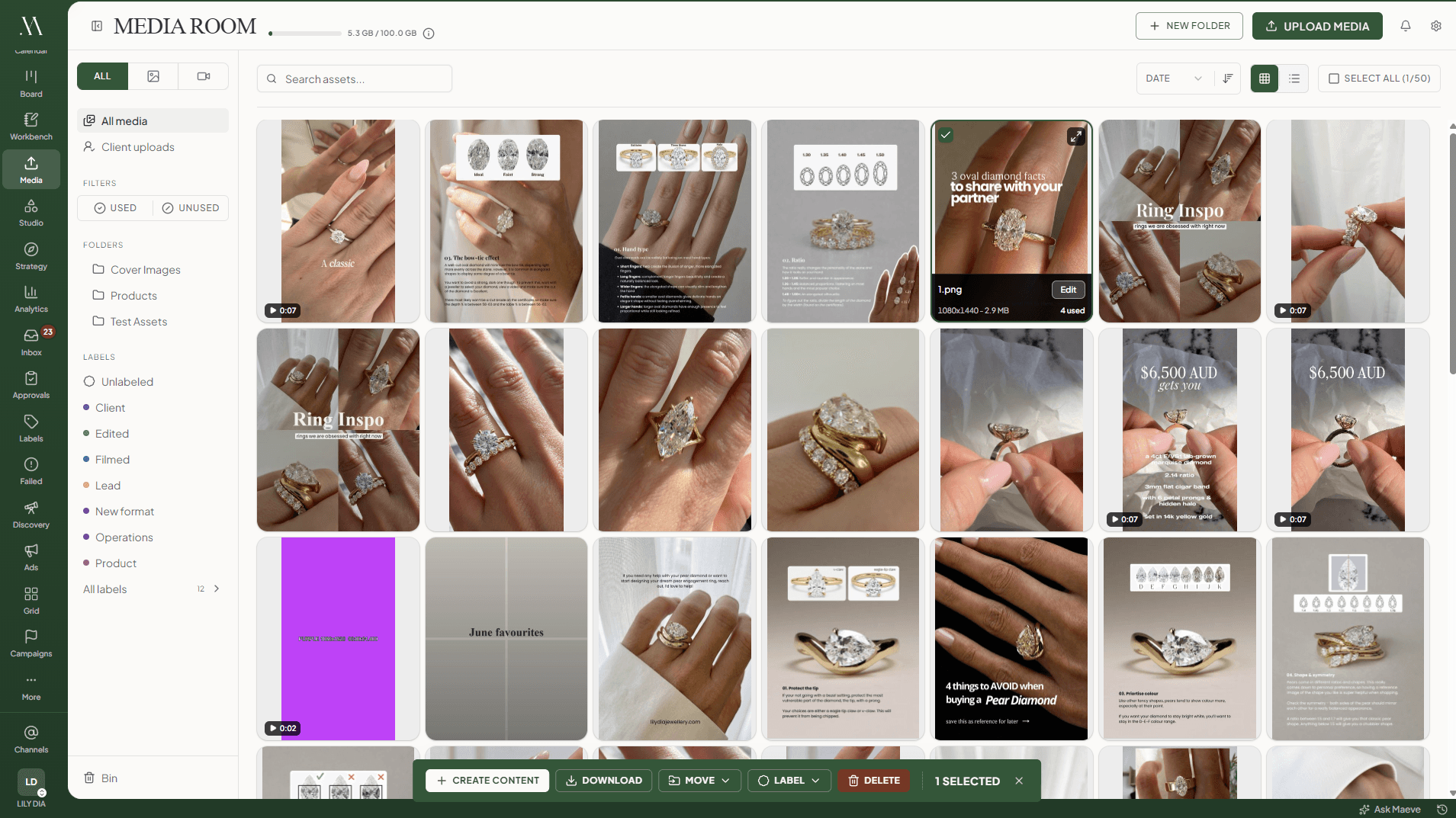
The file carries its own details
Open a file and the things you set once live right on it: the folder it belongs to, its labels, the filename, the alt text and any notes for whoever picks it up next.
Write that description on the file and every post that uses the photo gets it for free, which is the part everyone skips when they're moving fast. It counts for accessibility, and it helps the post get found later.
See everywhere a file has been used
The Usage tab lists every post a file sits on, the account, the platform, and whether it is still a draft or already out. Open any post from there. Filter the whole library to used or unused when you want to run something fresh instead of the shot from last week, and a file attached to a scheduled post is safe from an accidental delete. Seeing where a shot has already run is the start of repurposing content across platforms instead of shooting something new every week.
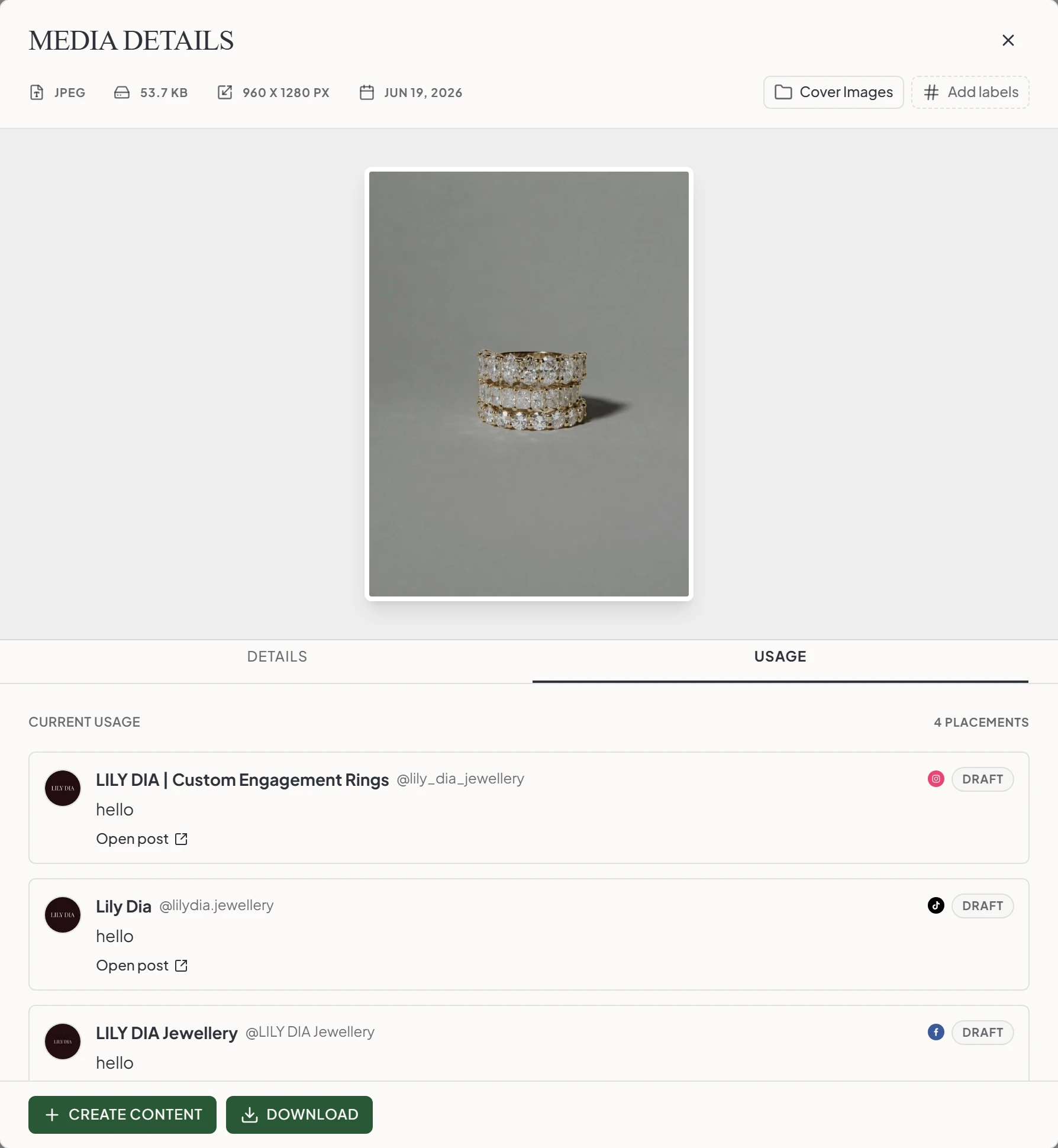
What the library holds
Everything you post lives in one place, with enough structure to find a file fast and enough safety net that nothing important disappears by accident.
Questions
What is Maeve Media Room?
Media Room is one shared library for every photo, video, and graphic your team uses on social. Upload a file once, sort it into folders, tag it by client or campaign, save the alt text on the file, then pick it straight from Composer when you write a post.
What is a social media media library?
It's a shared place to keep the photos, videos, and graphics your team uses on social. Instead of uploading the same image every time you write a post, you upload it once and pull it from the library forever. Folders and tags keep things easy to find.
Can I stop re-uploading the same photo for every post?
Yes. That's the whole point of Media Room. Upload a file once, then pick it from the library every time you need it. The same photo can sit on a Facebook post, an Instagram carousel, and a LinkedIn launch from the same source file.
Can I organize media into folders?
Yes. Make a folder for each client, brand, campaign, or launch. Add subfolders inside the parent for shoots or content series. Move files between folders without re-uploading them.
Can I label media?
Yes. Label by shoot, format, product or season, and the labels sit in the side panel next to your folders. Click one to narrow the library to it, and stack them with a folder or a file type to get down to the file you're after.
Can I save alt text on the file so I don't retype it every time?
Yes. Write the alt text once on the file. Every time someone uses that photo on a post, the description comes with it. No retyping. No copy-pasting from a doc. Big help for accessibility and SEO.
Can I see which photos I've already posted?
Yes. Filter the library to show only files that have been used or only files that haven't. Open any file and you'll see the full timeline of every post it's been on, when it was attached, when it was published, and when it was removed.
What file types can I upload?
JPG, PNG, GIF, WebP and AVIF for images, MP4 and MOV for videos, and PDFs, Word files and PowerPoint decks for LinkedIn document carousels. Drag files in, pick from your laptop, paste a screenshot from your clipboard, or import straight from Google Drive.
Can I import media from Google Drive?
Yes. Connect your Google Drive and import files straight in without downloading them to your laptop first. The file keeps its filename and lands in whichever folder you're currently in.
Can I select a batch of files and act on all of them?
Yes. Select as many as you need and label them, move them to a folder, download them or delete them in one go. You can also send the selection straight into a new post from the same bar.
What happens if I delete a file by accident?
Deleted files sit in the Bin for seven days. Restore them with one click before they're permanently gone. Files attached to scheduled posts can't be deleted by accident. The system blocks it before anything goes wrong.
Where do files a client sends me end up?
In their own Client uploads view, separate from the rest of the library, so you can see what has come in without it mixing into your own files. You share an upload link and the client sends files through it without an account.
How does Media Room work with Composer?
When you write a post in Composer, the Media Room picker opens right inside the editor. Click the file you want. The photo, alt text, and file info come along with it. No re-uploading. No starting over.
Is there a storage limit?
Storage depends on your plan, and the bar at the top of Media Room shows how much you're using and how much is left. It's pooled across the whole account rather than split per workspace.