
Connecting and Publishing to Facebook
Updated
Connect a Facebook Page to publish posts, Reels, and Stories from Maeve. Personal profiles and Groups are not supported. You sign in with the Facebook account that has access to the Page.

- 1Pick the network
- 2Approve on the network
- 3Connected
Connect available channels
3 / 20Before You Connect
You need a Facebook Page and Facebook access that includes permission to create Page content. Check the Page access screen in Facebook if the Page does not appear when you connect.
If the Page is owned through a Business Portfolio rather than by your personal account, make sure your account has access to it there first. The Page must be assigned to your account before you can select it.
The Instagram account attached to this Page is a separate connection and has to be connected on its own. Connecting and publishing to Instagram covers how the two relate.
Connecting a Page
- 1
Open Settings, then Social channels
Select Facebook from the connection grid and confirm that you have a business Page.
- 2
Continue to Facebook
Sign in on Facebook's sign-in page. Maeve does not receive or store your password.
- 3
Choose the Pages and Businesses
Facebook asks which Pages and Businesses Maeve can access. Choose the current assets you want, or allow all current and future assets if you want new Pages to become available without another authorization. Each Page becomes its own connection in Maeve.
- 4
Review the access request
Check the list, then select Save. Publishing, comments, messages, analytics, and Meta advertising each appear as separate items.
- 5
Confirm the Connected Page
Check the connected Page name and picture. If it is the wrong Page, connect the intended Page and remove the unwanted connection.
What Maeve Asks Permission For
Approve the requested permissions for publishing, inbox, analytics, and advertising access.
| Permission | What stops working without it |
|---|---|
| Manage posts | Maeve cannot publish posts to the Page |
| Manage engagement | You cannot reply to, hide or delete comments |
| Messaging | Facebook messages are unavailable in your inbox |
| Read engagement and content | Comments and reactions are unavailable |
| Show Page list | Maeve cannot show you which Pages you administer |
| Read insights | Analytics and posting-time data are unavailable |
| Ads access | Boosting a post and Meta ad reporting stop working |
| Business management | Pages held in a Business Portfolio cannot be reached |
| Page metadata | Maeve cannot read or set the Page details it needs |
| Public profile | Meta will not complete the login at all |
If Maeve reports missing permissions, repeat the connection steps and approve the requested access.
What You Can Publish
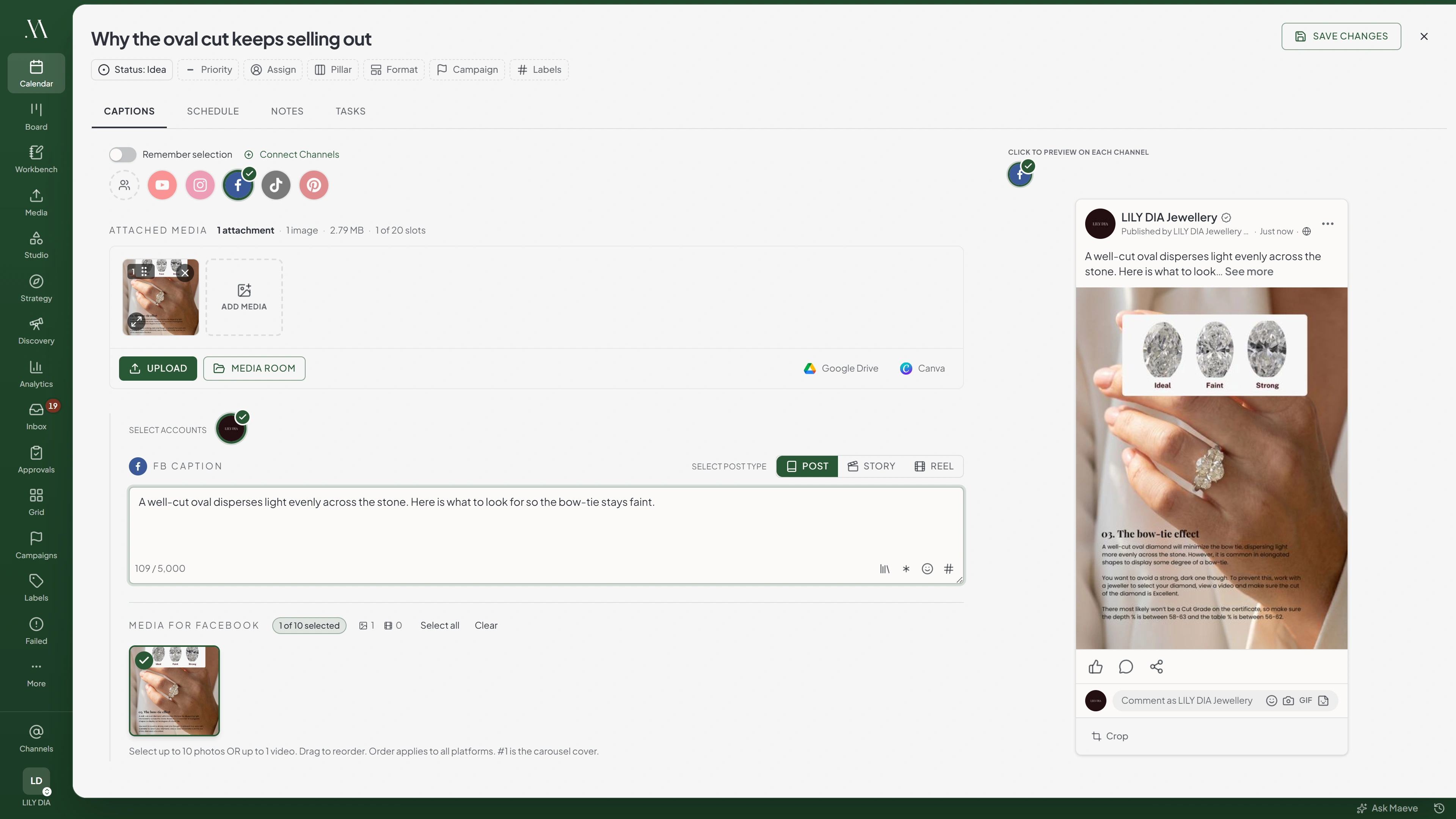
Select Facebook in the composer and choose a post type. Feed posts can contain text without media.
Facebook section
FB Caption
Select Post Type
Write for Facebook...
0 / 5,000Media for Facebook
0 of 10 selectedUp to 10 photos, or one video, never bothFacebook Settings
- Add link
- Add button
- Posts. Text, or up to 10 images, or one video. A link post can carry a button
- Reels. One vertical video, 3 to 90 seconds
- Stories. One image or one video from 3 to 60 seconds. Attach several and Maeve splits them into one story each, a second apart. Each of those counts against the Page's daily publishing allowance
Use images or one video in a feed post. To publish both, create separate posts.
Link Posts and the Button
- Select Facebook in the composer and use the feed post type.
- Enter the destination URL in the caption. Facebook uses the first URL for the link preview.
- Choose a call to action button, such as Learn More or Sign Up.
Link buttons are available on feed posts without media. Adding an image or video removes the link field and button. Reels and Stories do not offer link buttons. Stories also do not support a first comment.
The Limits
| What | Limit |
|---|---|
| Caption | 5,000 characters |
| Story caption | 5,000 characters |
| Comment | 5,000 characters |
| Images per post | 10 |
| Videos per post | 1 |
| Reel length | 3 to 90 seconds |
| Story length | 3 to 60 seconds |
| Reel size | At least 540 by 960, with an aspect ratio from 1:2 to about 5:8 |
| Story size | At least 540 by 960 for video, no wider than about 5:8 |
| Video format | MP4 |
| Aspect ratios | 1.91:1, 1:1, 4:5, and 9:16 for stories and Reels |

Transform
Aspect Ratio
The list swaps with the post type, the same way Instagram's does.
What Will Stop a Post
- Photos and video in the same post. Create a separate post for each media type
- More than one video. One per post, whatever else is attached
- A photo attached to a Reel. Remove the photo and attach one video
- A story with no media. Unlike a feed post, a story has to carry an image or a video
- A Reel or story that is too wide. Reels accept ratios from 1:2 to about 5:8. Stories must be no wider than about 5:8. Video must be at least 540 by 960
- A video that is not MP4. Convert the video to MP4 before attaching it

Facebook will refuse
Facebook does not support mixing photos and videos.
6 of the ones people hit
When the Connection Breaks
If an account shows Needs reconnecting, restore its connection before the next scheduled post is due.
- Open Settings, then Social channels.
- Find the affected account and select Reconnect.
- Sign in to the same account and approve the requested permissions.
Reconnecting keeps scheduled posts attached to the account. After reconnecting, retry any posts that failed while the connection was unavailable.
Your connected channels
2Your Company
Facebook PageYour Other Brand
Needs reconnectingThis account's connection has expired. Reconnect it in Settings and try again.
Errors Facebook Returns
| Error message | What to do |
|---|---|
| Facebook needs you to confirm your identity before it can publish as this Page | Meta has flagged the Page for an identity check. Open Facebook on your phone, complete it, then retry the post. Reconnecting does not clear it |
| Facebook does not support mixing photos and videos | The post has both. Split it into a photo post and a video post |
| Facebook allows only one video per post | Remove the extra videos, or schedule them separately |
| Facebook Reels support one video only | A photo is attached to a Reel. Remove it, or publish as a normal post |
| Facebook Stories require at least one image or video | Attach an image or video |
| This account's connection has expired. Reconnect it in Settings and try again | Reconnect the channel in Settings, Social channels, then retry the post |
| Facebook publish limit reached. Meta reports this account has reached its rolling 24-hour publishing limit. Schedule later to use the next available slot | The Page is out of allowance for now. Nothing is wrong with the post |
| Facebook rejected content | Meta refused the post itself. The rest of the message says why |
Questions
Can Maeve post to my personal Facebook profile?
No. Connect a Facebook Page to publish from Maeve. Professional mode on a personal profile does not make it a Page.
Can Maeve post to a Facebook Group?
No. Maeve supports Facebook Pages, not Groups.
Why can I not add a button to a post with a photo?
Buttons are available on link posts without media. Remove the photo to use a link button, or publish the photo without a button.
Why did my Facebook post fail when the same post worked on Instagram?
Check the Facebook error. Facebook accepts one video per post and does not allow images and video together. Use MP4 for video.
Does connecting Facebook also connect my Instagram account?
No. Connect Instagram separately, even when it is linked to the Facebook Page. Each account uses one connection.
What Facebook Page access do I need?
You need access to create Page content. If the Page is missing during connection, check Page access in Facebook or the Business Portfolio that owns it.
Can the same Page be connected in two workspaces?
Yes. Connect the Page separately in each workspace.