
Maeve Social iOS App
Updated
The Maeve Social iOS app puts your social media workspace on your iPhone and iPad. Write and schedule posts, see what is going out, approve content, reply to comments and messages, and check your analytics when you are away from your desk.
It is the same Maeve you use in your browser. Sign in with your existing account and your workspaces, channels, content, and media are already there. If you are new to Maeve, you can create an account in the app.

Free to download. Requires iOS or iPadOS 16.4 or later.
Create and Schedule Posts
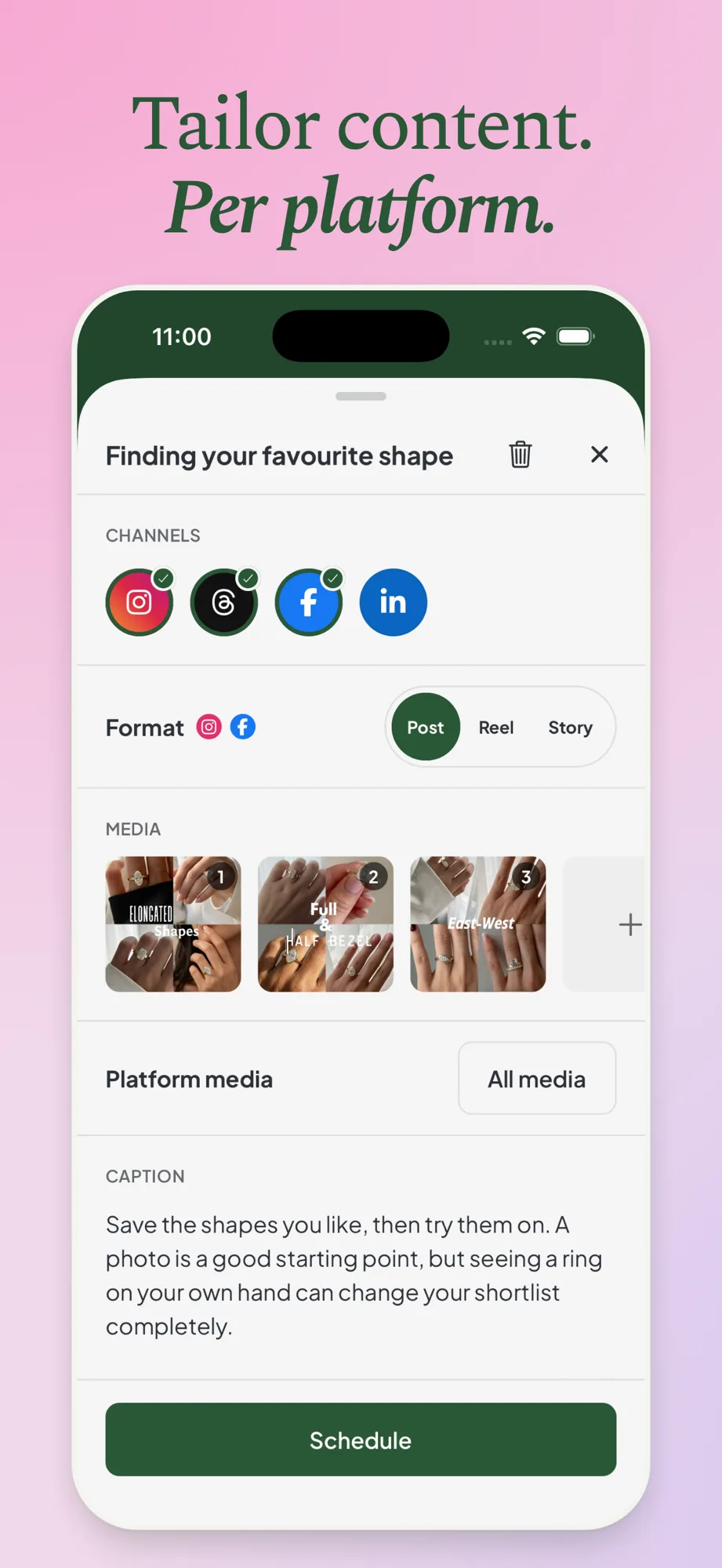
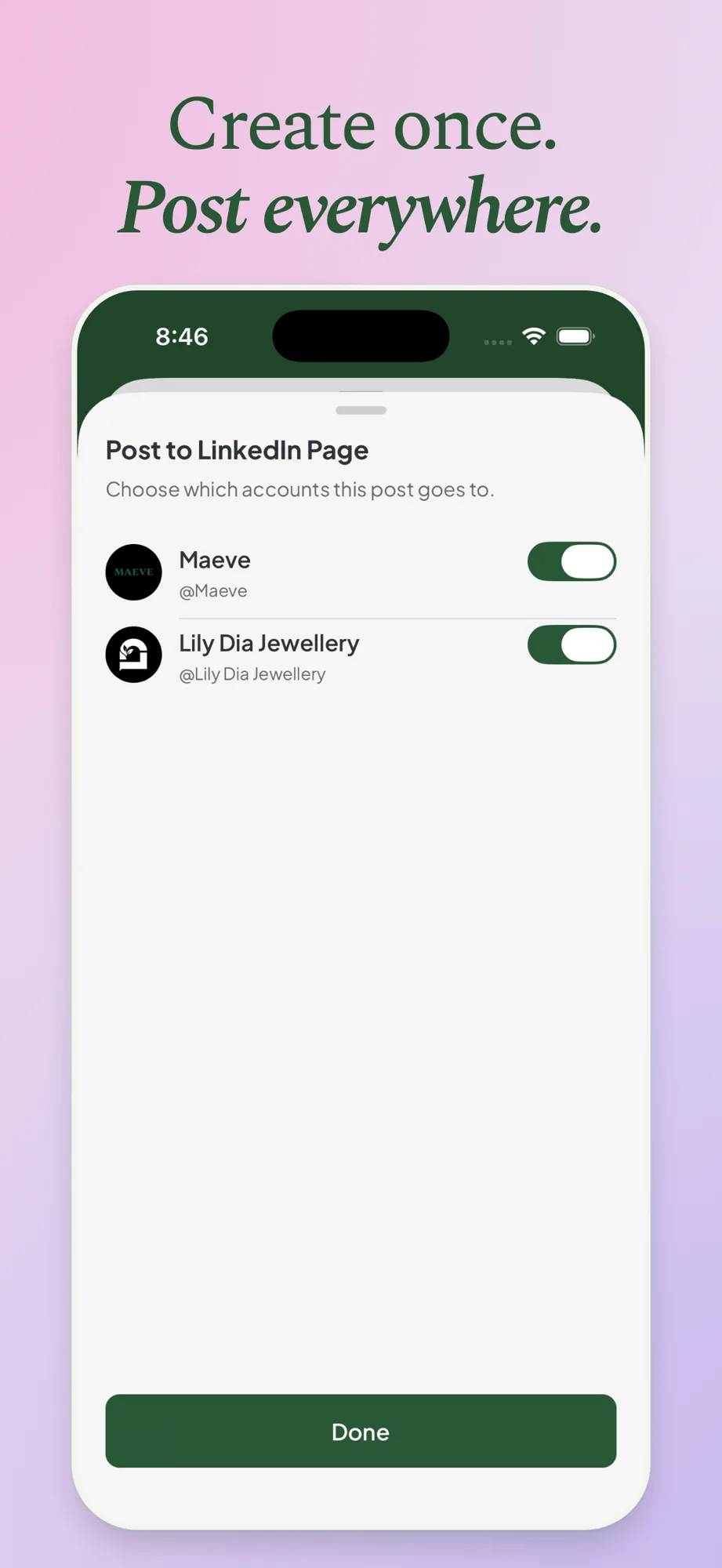
Start a post on your phone when the idea comes to you. Write the caption, add photos or videos, and pick the channels it goes to. Each channel can have its own wording, media, and publishing settings, so your Instagram post and your LinkedIn post do not have to say the same thing.
Crop images, choose a cover, add a title or a first comment, and build a thread where the network supports one. Preview the post, then publish it now, schedule it, or save it as a draft. Drafts save as you go, so you can pick up where you left off on your phone or in the content editor on the web.
See What Is Going Out
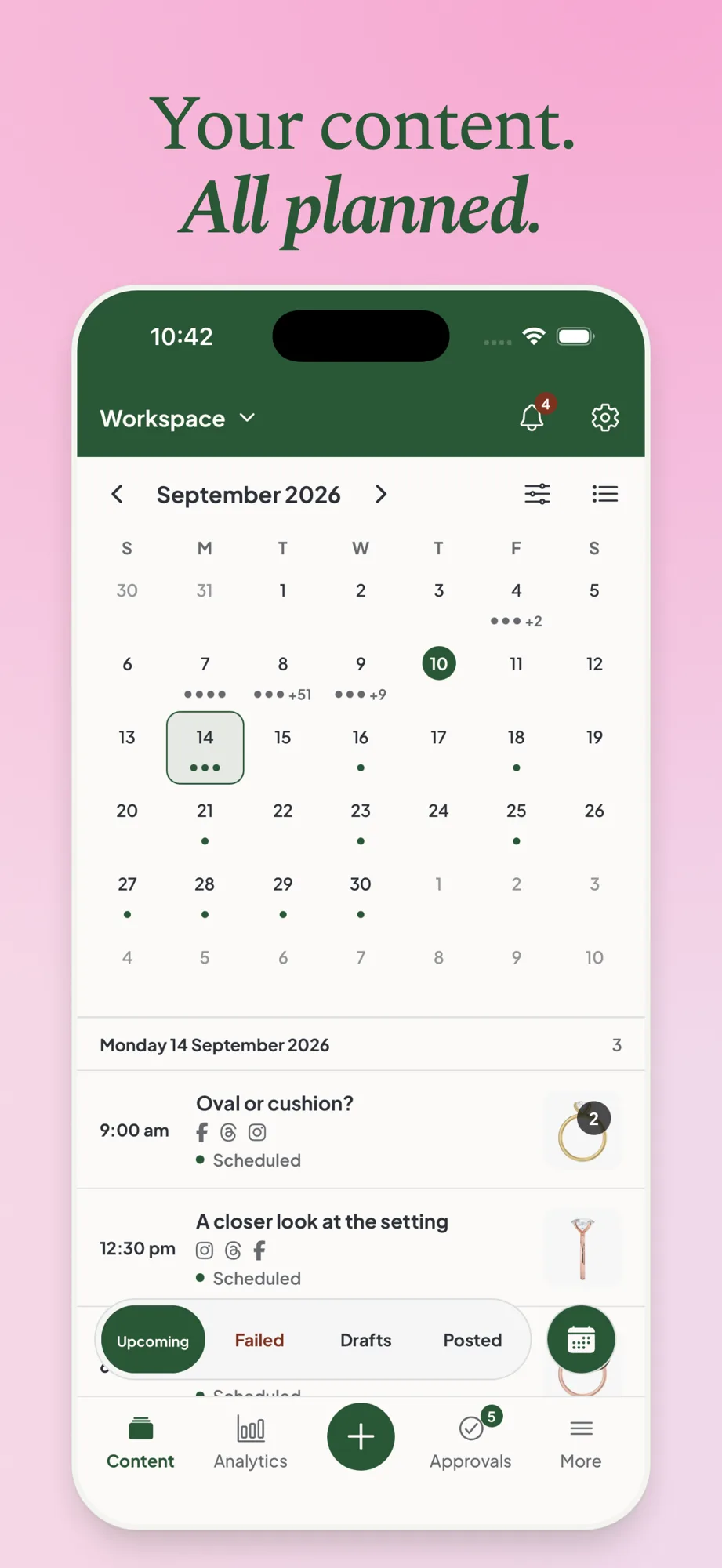
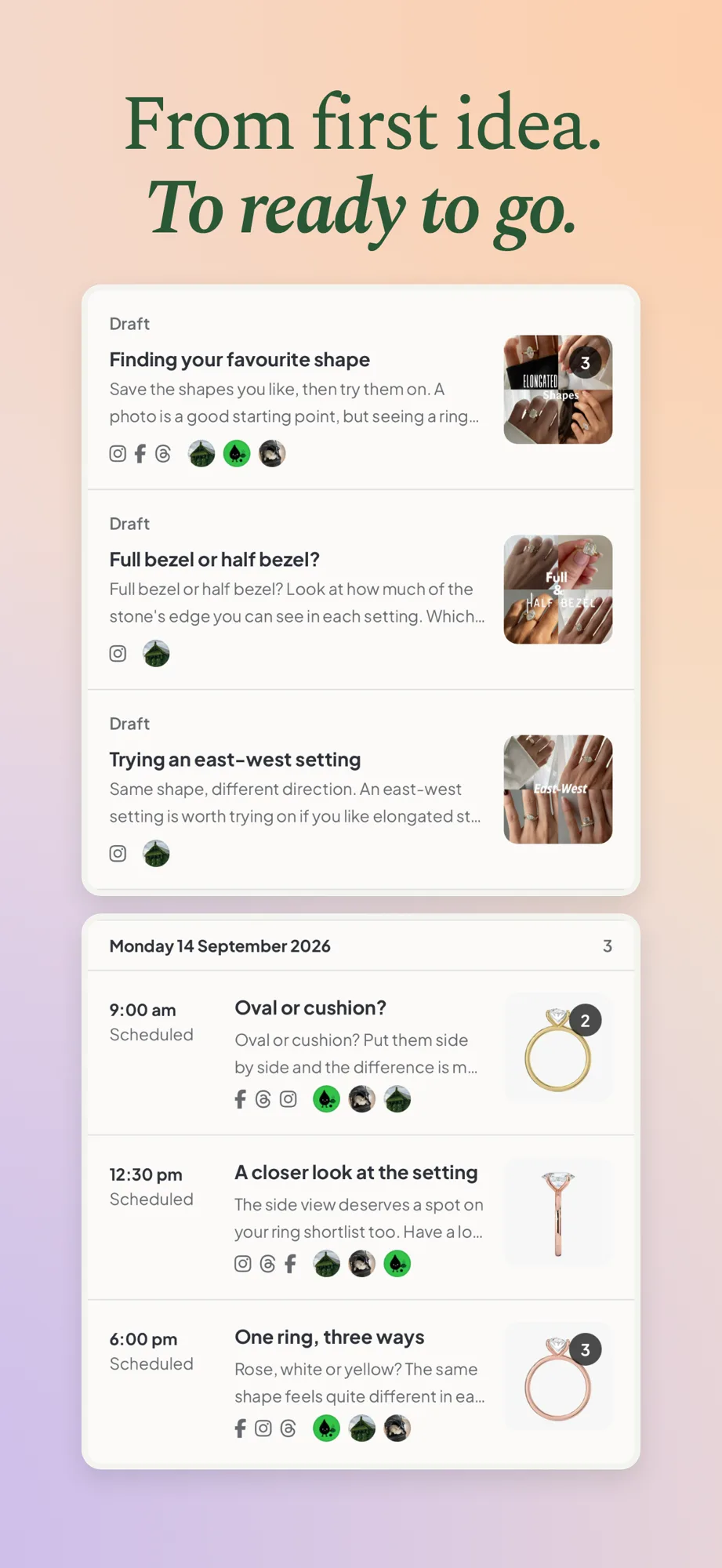
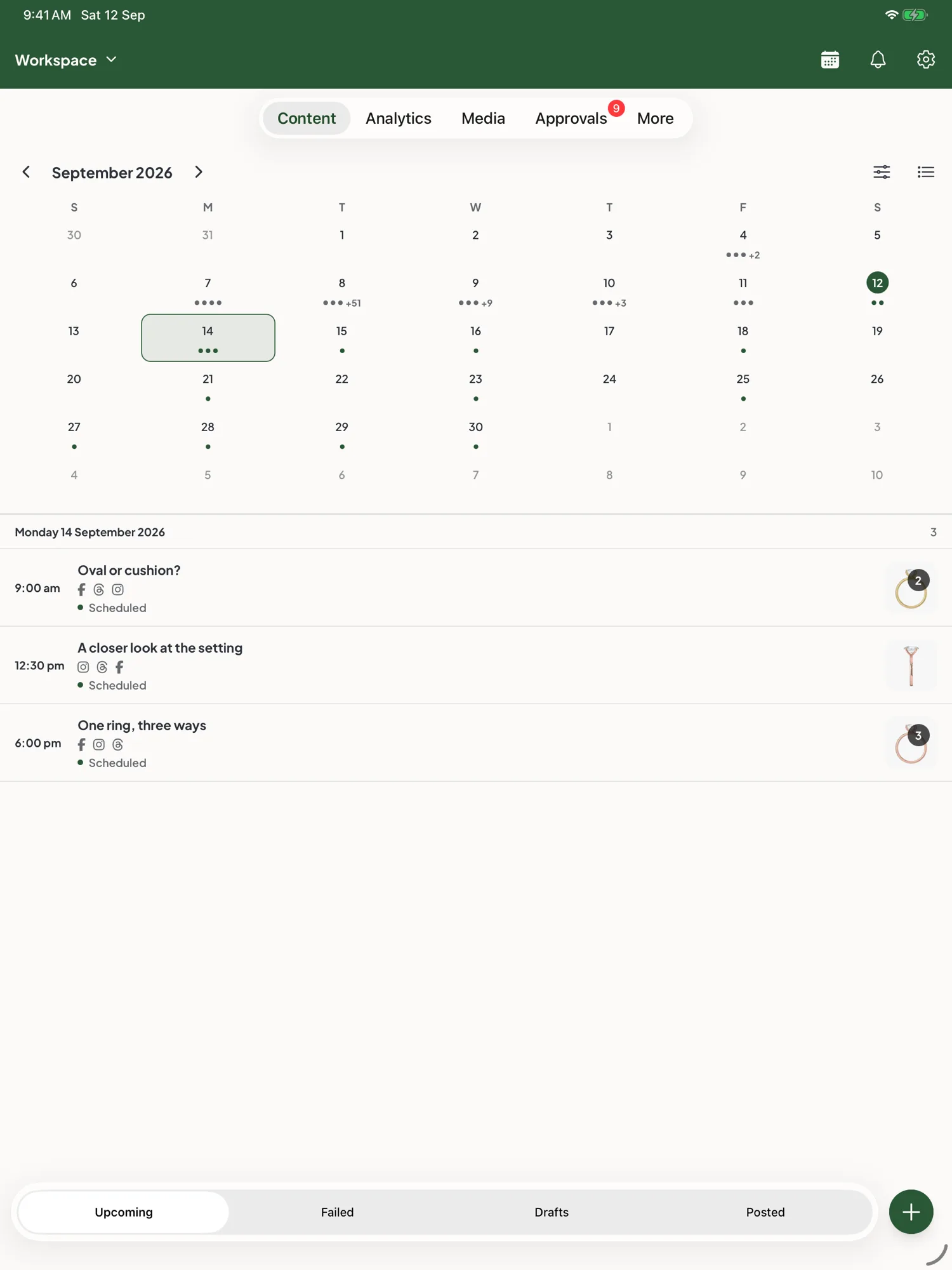
Your content calendar comes with you. Switch between the month view and a list, and flip between what is upcoming, still in drafts, already posted, or failed.
Move a post to a new time, send it back to drafts, or fix a post that failed to publish without opening your laptop. Scheduled posts go out from Maeve's servers, so your phone can be locked or offline when a post is due.
Check Your Analytics
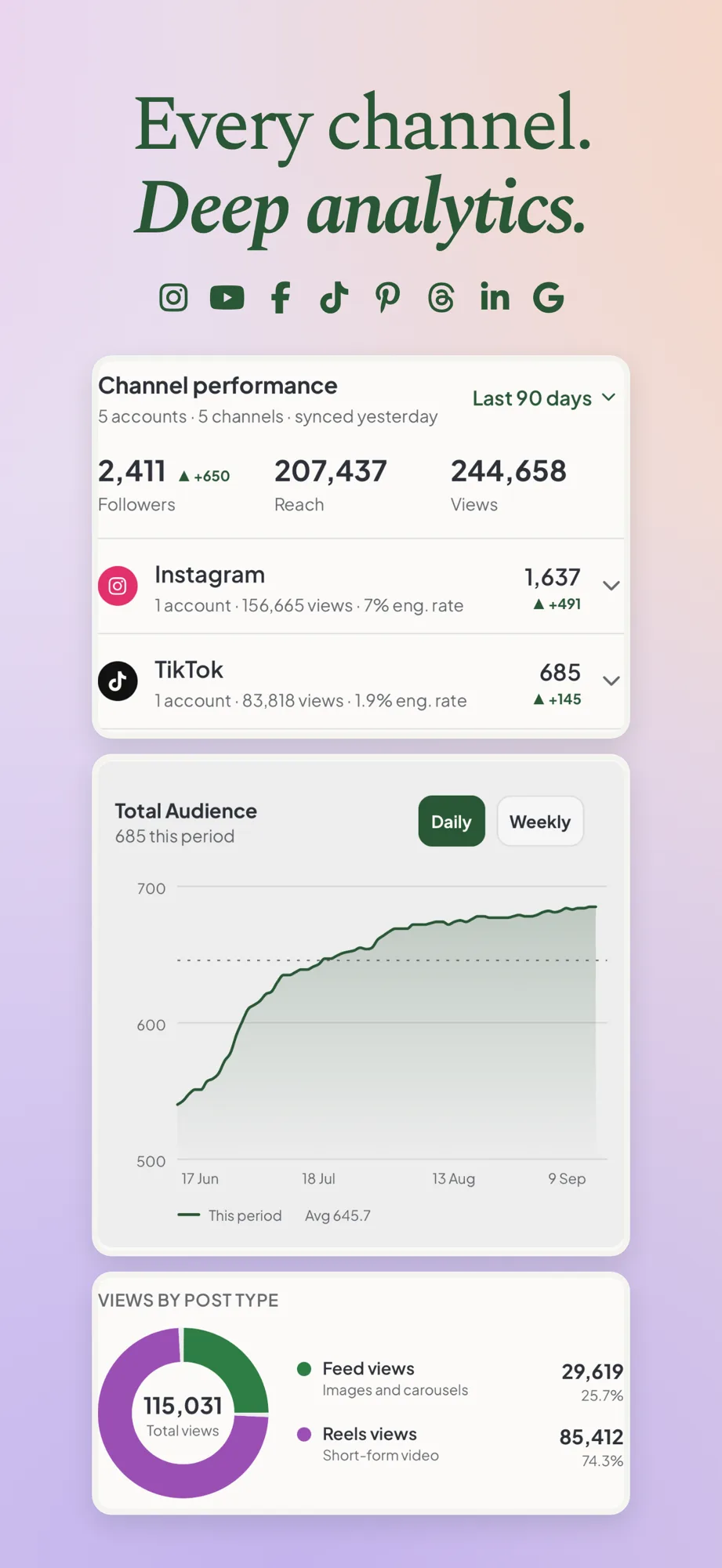
See how each channel is doing for the date range you choose: followers, reach, views, and how your audience has grown over time.
Dig into engagement, find the posts your audience responded to, and check the best times to publish, so you know what to make next. The same numbers feed analytics and reports on the web.
Approve Content and Run Client Reviews
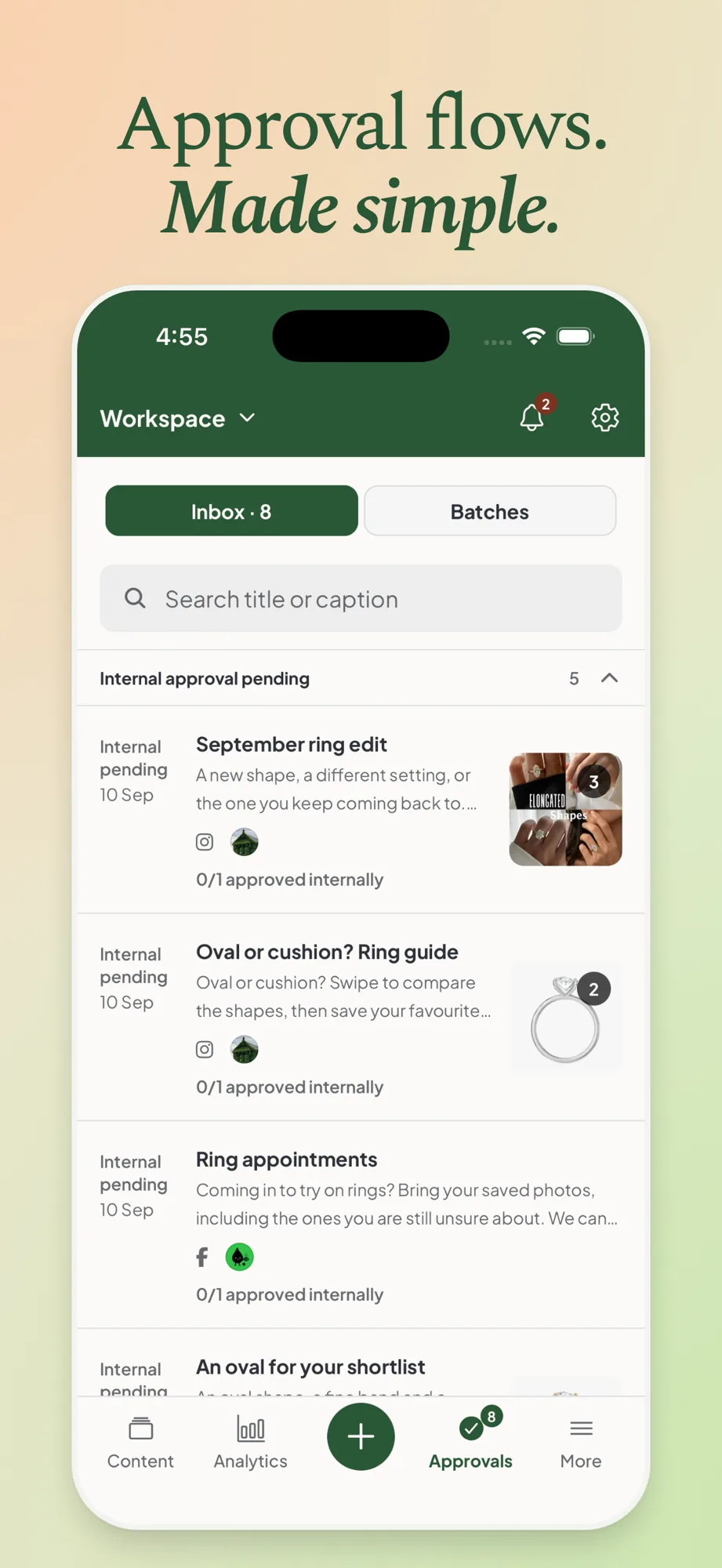
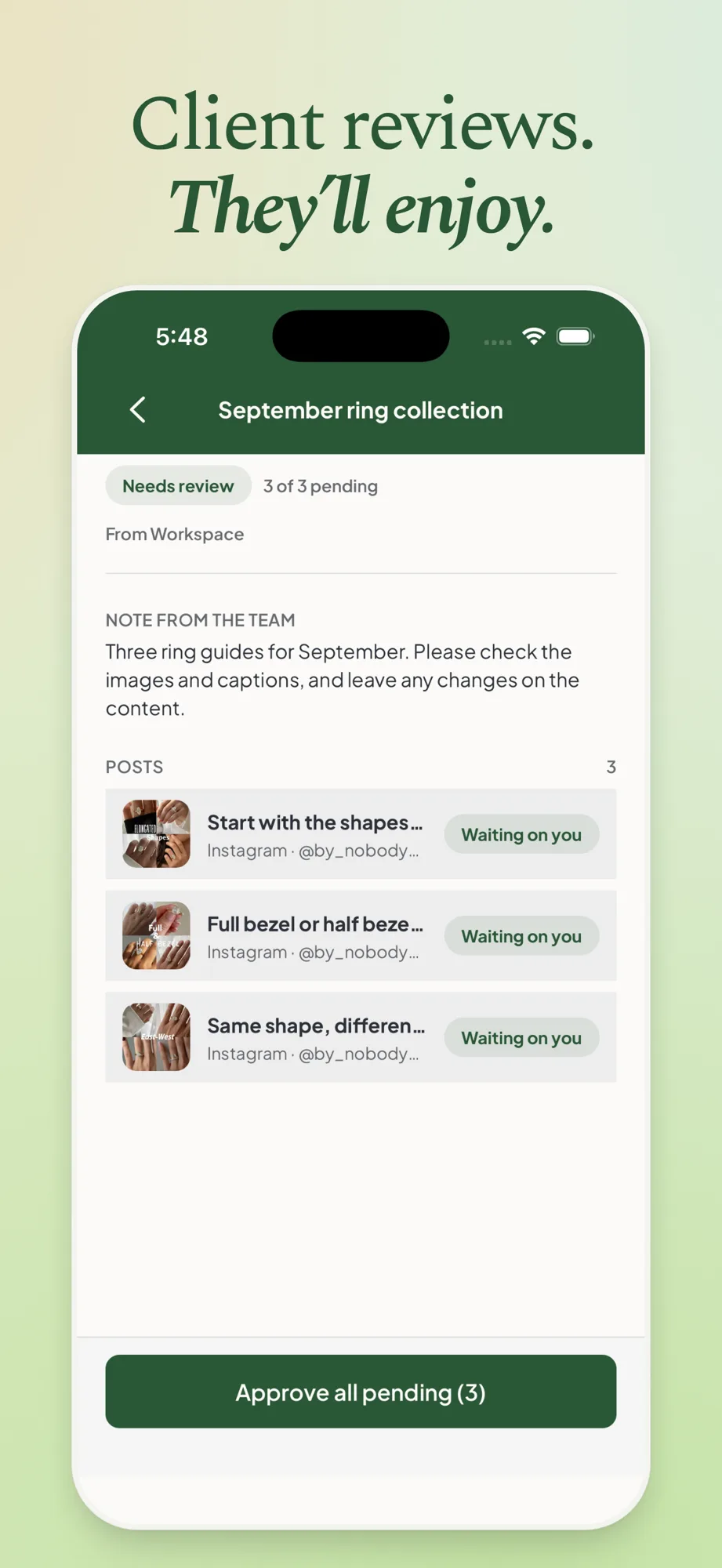
Send content for internal approval, follow the feedback, and make changes before anything goes live. Approvals has its own tab, so you can see what is waiting on you at a glance.
Client reviews work from your phone too. Send reviews, read comments and requested changes, resubmit, and schedule what gets approved. Your client does not need the app, an account, or a paid seat. They open a link in their browser and approve or ask for changes there.
Reply to Comments and Messages
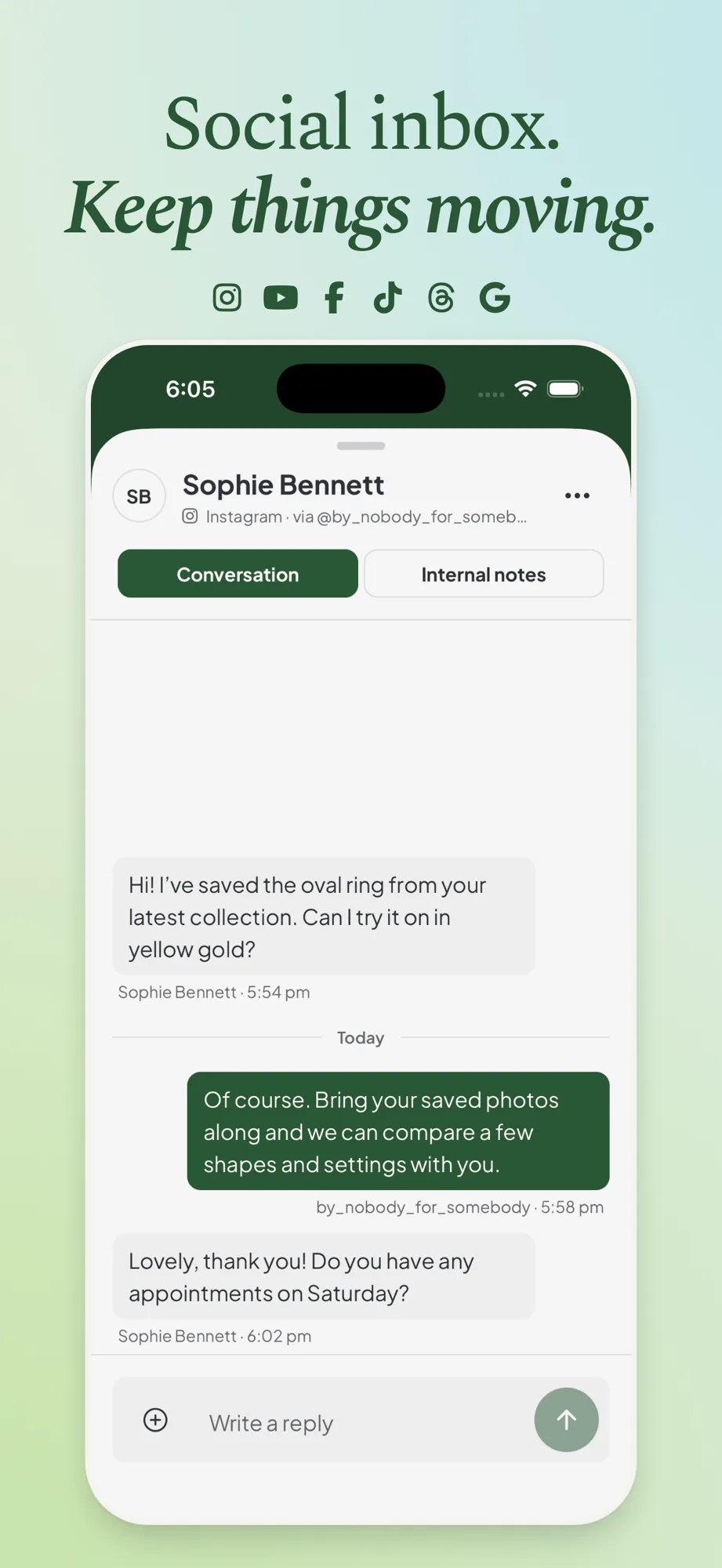
Supported comments and direct messages come into one social inbox. Search and filter conversations, reply from Maeve, and leave internal notes your team can see but the customer cannot.
Mark a conversation resolved when you are done with it, so the inbox only shows what still needs someone.
Find and Upload Media
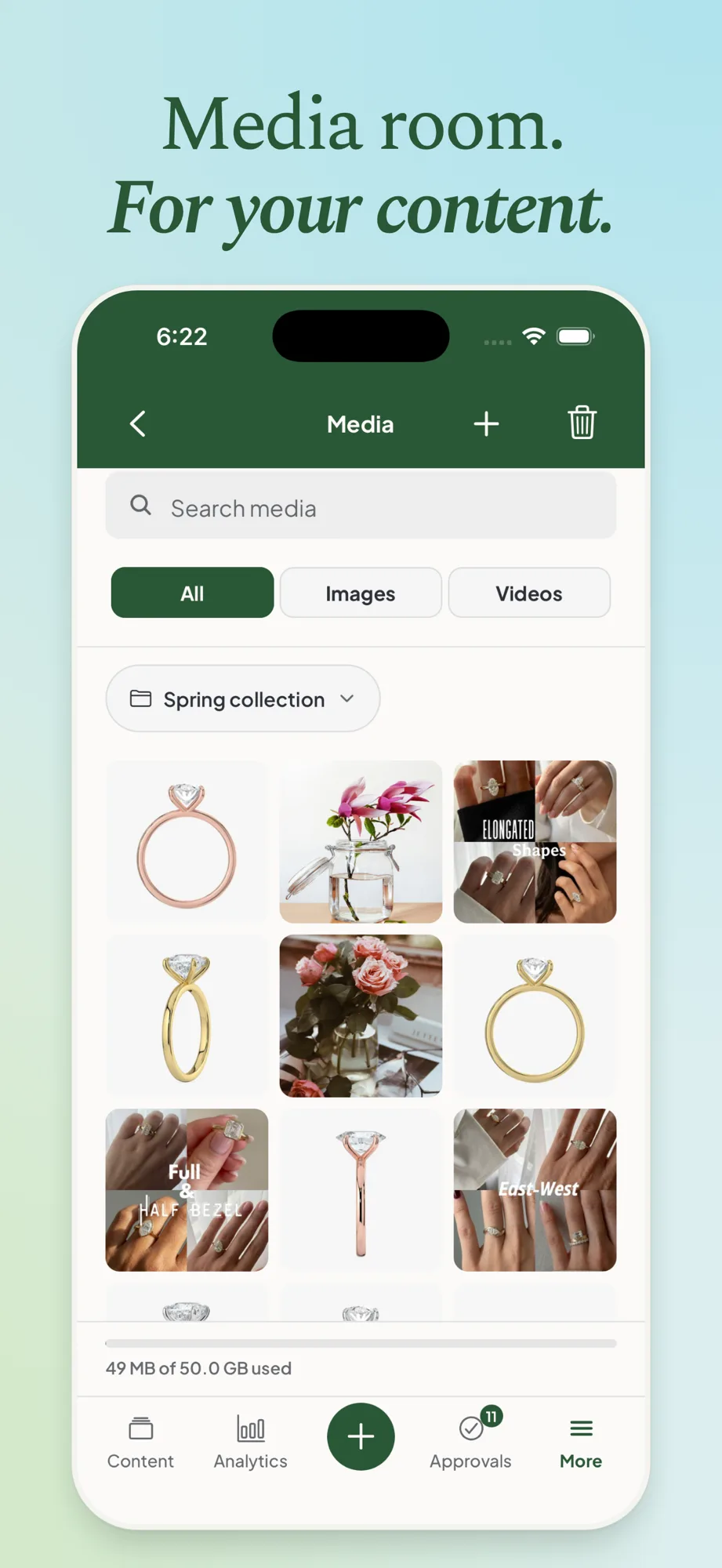
Media Room has the same folders and files as on the web. Search your library, filter to images or videos, and reuse a file in a new post. Upload from Photos, Files, or the camera.
You can also share photos, videos, text, or a link into Maeve from another app, and it starts a draft for you while the idea is still fresh.
Plan With Goals, Bets, and Retros
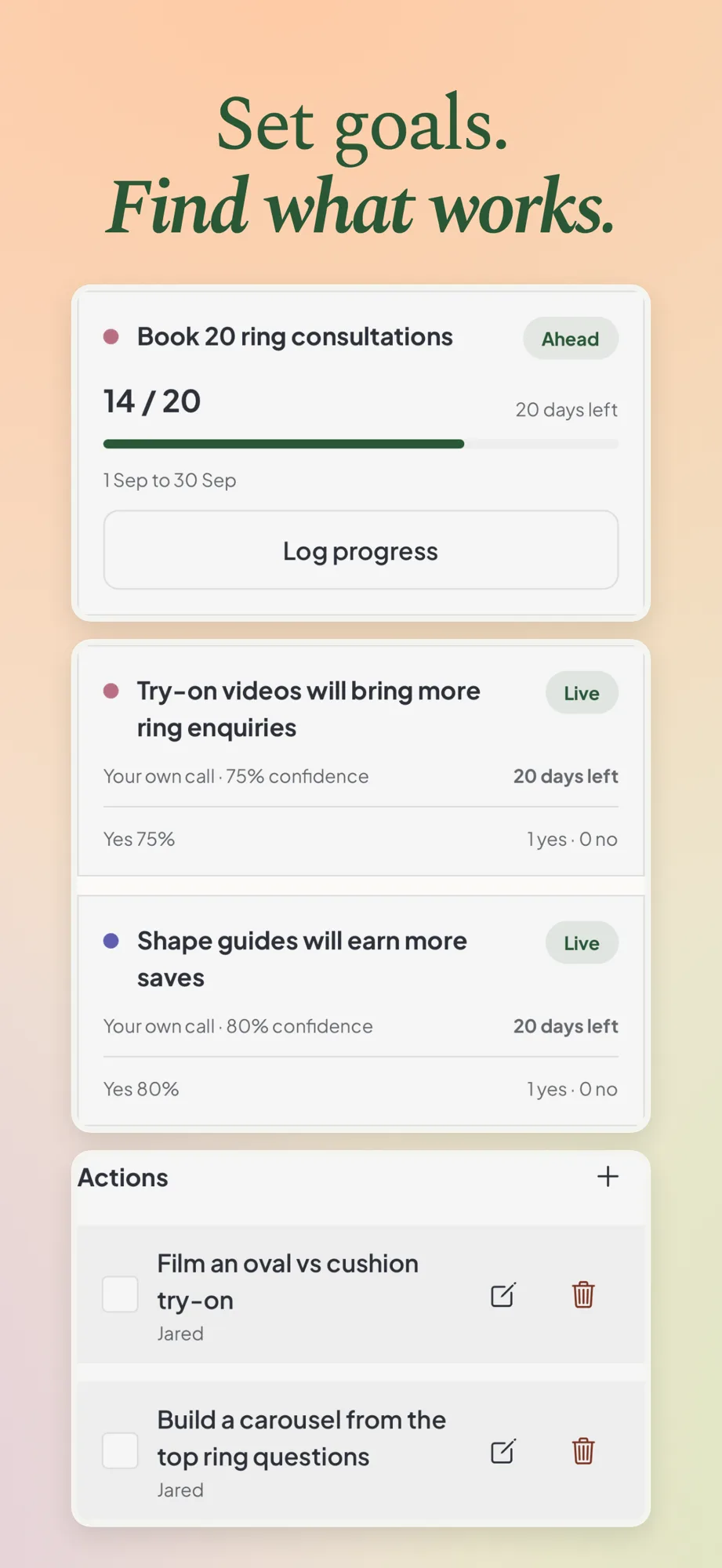
Your strategy sits next to your everyday work. Set your foundation and goals, log progress against them, and track bets, which are the ideas and experiments you want to test.
At the end of a period, run a retro on what went well, what did not, and what to try next. Agree on the actions and tick them off as they get done.
Maeve Social on iPad
The same app runs on iPad with iPadOS 16.4 or later. The bigger screen gives your calendar and post previews more room, with the main sections along the top.
Light and dark mode work on both iPhone and iPad, and the app supports larger text sizes.
What's on the Web
The app is built for the work you do on the move. The bigger planning tools stay in the browser at your desk: the Workbench, campaign planning, the content board, the Grid planner, and reports you can send to a client.
The AI assistant that drafts in your brand voice is on the web too, and it never publishes on its own. Your subscription covers both, so there is nothing extra to buy.
Price and Subscriptions
The app is free to download. To use Maeve you need a subscription on one of the plans on the pricing page, and eligible new subscribers can start with a 3-day free trial.
Your plan belongs to your organization, not your device. A plan you pay for on the web works in the app, and a plan you buy in the app works on the web.
If you subscribe in the app, Apple handles the billing and you manage or cancel the subscription in your App Store settings. Billing through the App Store covers plan changes, refunds, and what to do before you delete your account.
Questions
Is the Maeve Social app free?
The app is free to download. Using Maeve needs a subscription, and eligible new subscribers can start with a 3-day free trial.
Can I use my existing Maeve account?
Yes. Sign in with the email and password you use on the web. A plan you already pay for on the web works in the app, so you do not need to subscribe again.
Does the app work on iPad?
Yes. It runs on iPhone with iOS 16.4 or later and on iPad with iPadOS 16.4 or later.
Do I need to keep the app open for posts to go out?
No. Scheduled posts publish from Maeve's servers, so your phone can be locked or offline when a post is due.
Does the app send notifications?
Yes. You can get push notifications for approval requests and comments, client review feedback, posts that fail to publish, accounts that need reconnecting, new inbox messages, mentions, and tasks assigned to you. You choose which ones you get for each workspace.
Which networks can I post to from the app?
Instagram, Facebook, Threads, TikTok, LinkedIn profiles and Pages, YouTube, X, Pinterest, and Google Business Profile.
Do my clients need the app to approve posts?
No. Clients review in their browser through a link you send. They can approve or request changes without an account or a paid seat.
How do I cancel a subscription I started in the app?
Apple manages subscriptions bought in the app. On iPhone, open Settings, tap your name, then Subscriptions, and choose Maeve.