
Checking a Post Before It Goes Out
Updated
Review each channel's preview, resolve validation errors, and check the selected accounts and schedule before confirming the post.
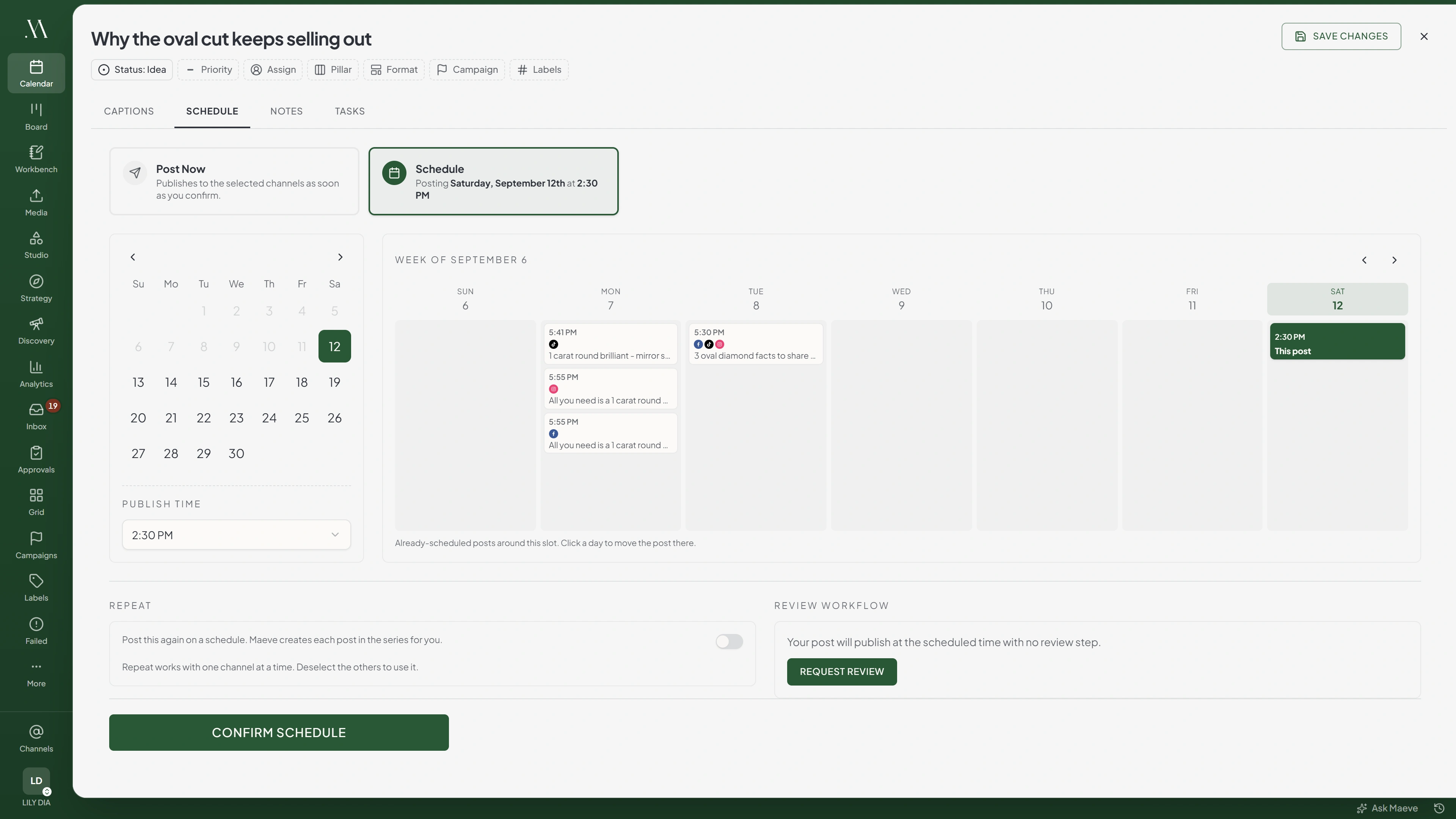

Preview
Channel previews
The Flour Shop @theflourshop · Now
October bookings are open. Two Saturdays left.
One preview per channel, not per account. Two Instagram accounts on the post still draw one card.
The Preview
Select a channel at the top of the preview panel. Check its caption, selected media, and post type. For Instagram, switch to the profile grid view to see the post alongside other posts.
The preview shows one account per platform. If you selected two Instagram accounts, it uses the first account's identity.
If the panel is empty, select a channel.
What the Preview Does Not Show
Use the preview to check layout and content. The published result may differ when the platform compresses video, creates a link preview, or truncates text.
Use the controls in the preview to crop media, edit alt text, or add supported Instagram tags.
The Checks
Maeve checks the selected channels before publishing. Some errors appear while you edit, some appear when you select Publish, and others appear at confirmation.

- 1Before you click
- 2On click
- 3At the confirmation
This scheduled time is already in the past. Pick a future date or time before confirming.
Nothing opens. The button is just not available.
The button is off. Most reasons show a banner above it. TikTok's two required settings show only as a tooltip on the button itself.
Review errors for:
- Media duration, dimensions, format, and file size.
- Unsupported media combinations.
- Required fields, such as titles and Pinterest boards.
- Caption length and hashtag count.
- Platform settings, such as TikTok visibility and content disclosure.
If the publish button is disabled, read the message above it. For missing TikTok visibility or disclosure settings, hover over the button to read its tooltip.
The validation dialog lists errors from all selected channels. Most messages name the platform. For a message without a platform name, check the media warnings in each channel's section.
The Confirmation Step
Review the accounts, captions, media, and publishing time before confirming. A caption marked Main uses the shared text. Other captions use the version you wrote for that channel.

Review before publishing
- Instagram@theflourshop2
- Format
- Reel
- Caption
- Main: October bookings are open. Two Saturdays left.
- First comment
- Added
- Collaborators
- 2
- Pinterest@theflourshop1
- Board
- Autumn season
- Destination link
- theflourshop.co.uk/book
- Alt text
- Added
- LinkedInThe Flour Shop1
The Flour Shop needs reconnecting, and the others will still publish.
- Caption
- A longer version for a work audience.
Reconnect any account marked as needing reconnection before its scheduled publish time. The warning does not necessarily prevent you from confirming.
One Network Can Stop the Whole Post
Resolve validation errors on every selected channel before confirming. If one channel needs more work, remove it from the selection and schedule the others. Create a separate post for the remaining channel.
Fixing an Error
Select Fix Issues to return to Captions, then open the affected channel. Media errors appear below the relevant file. Use Crop when the error can be resolved by changing the image's dimensions.
| Error | Action |
|---|---|
| Duration or dimensions | Trim or resize the media for the affected platform |
| File format | Convert the file to a supported format and reattach it |
| Missing title | Enter a title for Pinterest or YouTube |
| Missing Pinterest board | Select a board before confirming |
| Instagram hashtag count | Reduce the caption to five hashtags or fewer |
| TikTok visibility or disclosure | Complete the required settings |
Run the checks again after editing.
If Publishing Still Fails
A validation error stops the post before submission. A platform can still reject a post that passed the composer checks.
If publishing fails, open Failed Posts, read the error, and correct the problem before retrying. Check the result for each account, since a post can succeed on some accounts and fail on others.
Questions
Does the preview show exactly what will publish?
It shows your selected caption, media, and post type. Platform compression, link previews, and text truncation can change the published appearance.
Why does one network stop the whole post?
Validation runs across all selected channels. Resolve the error or remove the affected channel before confirming.
How do I know which channel an error belongs to?
Read the platform name in the message. If it is missing, check the media warnings and required fields in each selected channel.
Can I publish anyway and fix it later?
You must resolve blocking errors before publishing. Warnings, such as low publishing allowance or a connection warning, may still allow confirmation.
What is the difference between a check and a failed post?
Validation runs before submission. A failed post has encountered a publishing error. Fix validation errors in the composer and publishing failures in Failed Posts.
Why is the publish button greyed out?
Read the message above the button. If none is shown, hover over it for a tooltip, particularly when using TikTok.
Why can I not see a preview?
Select a channel at the top of the preview panel.
Does the preview use the shared caption or the channel's own?
It uses the channel's own caption if you edited it separately. Otherwise, it uses the shared caption.