
Repeating a Post on a Schedule
Updated
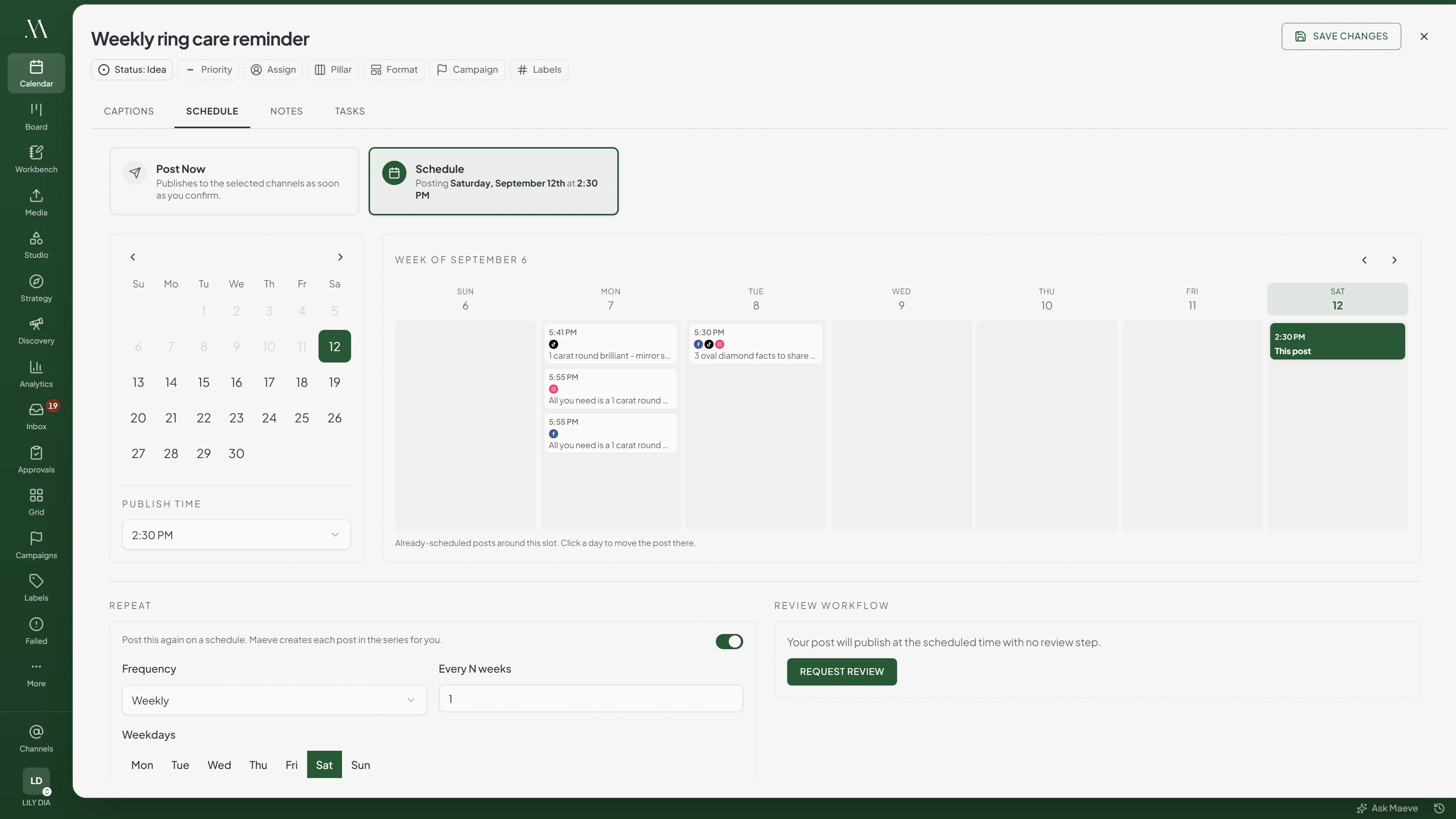
Open Schedule on a draft and turn on Repeat to create a weekly series. Select one account before enabling it. Recurring posts cannot go through a review. If a required approval workflow covers the post, turn off Repeat to submit it for approval.

- Two channels picked
- No channel picked
- Already scheduled
- Review requested
Repeat
Post this again on a schedule. Maeve creates each post in the series for you.
Repeat works with one channel at a time. Deselect the others to use it.
Turn Repeat on and then add a second channel and it switches itself back off, without a word.
Setting the Cadence
- 1
Select One Account
Keep the post as a draft and select the account that should publish it.
- 2
Choose the First Date and Time
Open Schedule and set the publishing date and time. Check the workspace timezone.
- 3
Turn On Repeat
Use Weekly frequency and enter the interval, from 1 to 52 weeks.
- 4
Select the Weekdays
Choose every day the post should publish during each repeat week. At least one day is required.
- 5
Choose an End
Select an occurrence count or an end date, then review the generated dates before confirming.

Repeat
Post this again on a schedule. Maeve creates each post in the series for you.
Frequency
Every N weeks
Weekdays
Ends
Occurrences
Timezone Europe/London
This content will post weekly on Monday and Thursday at 9:00 AM, 6 times in total.
Occurrences use the post's scheduled time in the workspace timezone. If the workspace has no timezone, Maeve uses the browser's timezone.
Choosing How It Ends
Select After occurrences to set a count, or choose an end date.
A series generates at most 52 occurrences, even though the count field accepts up to 500. Use a count of 52 or fewer and check the generated total before confirming.
The Preview
Check the Repeats markers on the week strip and read the schedule summary below the fields. Move between weeks to review later dates. The confirmation screen shows the generated occurrence count.
Preview warnings allow you to continue. Recurring schedule blocked means you must change the schedule before creating the series.
Daylight-saving changes can affect the selected time. A time skipped when clocks move forward blocks the series. A time repeated when clocks move back produces a warning, and Maeve uses the earlier occurrence.
What Each Occurrence Carries
Creating the series creates a separate scheduled post for each date, using the caption, media, and settings from the draft.

Six occurrences
- 1Mon 6 OctPublished
- 2Thu 9 OctPublished
- 3Mon 13 OctDetachedEdited, so it left the series
- 4Thu 16 OctRecurring
- 5Mon 20 OctRecurring
- 6Thu 23 OctRecurring
What you can do to one
- Apply schedule to this and future
- Cancel this occurrence
- Cancel this and future
Those three are the whole set. There is no screen showing the series as a whole, and the days and interval cannot be changed once it has been created.
Editing the source draft afterward does not update those scheduled posts.
Changing a Series
Open an occurrence from the calendar or content board, then open More actions:
- Apply schedule to this and future: Move this and the remaining occurrences to a new date and time.
- Cancel this occurrence: Cancel only the selected occurrence.
- Cancel this and future: Cancel this occurrence and the remaining series.
To change the weekdays or interval, cancel the remaining series and create a new one. Those fields cannot be changed on an existing series.
Editing an occurrence's content marks it Detached. It keeps your changes and is excluded from later series updates. It cannot be reattached.
Canceled occurrences remain visible when the calendar includes canceled posts. Published occurrences are unaffected.
Questions
How often can a post repeat?
Use Weekly frequency with an interval from 1 to 52 weeks. Select the weekdays to publish on within each repeat week.
Can one recurring post go out on more than one day a week?
Yes. Select multiple weekdays. The series still uses one connected account.
Why is the Repeat switch greyed out?
Select exactly one account and keep the post as a draft. Repeat cannot be added after the post is scheduled.
How do I stop a series?
Open an occurrence, then choose More actions, Cancel this and future. Published posts remain. Future occurrences are marked canceled.
Can I edit one occurrence without changing the rest?
Yes. Editing its content detaches it permanently. Later series updates will not apply to that occurrence.
Can I change the days or the interval after the series is running?
No. Cancel the remaining occurrences and create a new series with the required weekdays and interval.
What time does each occurrence publish at?
It uses the scheduled time you set when creating the series, interpreted in the workspace timezone. Check the generated dates before confirming.
What is the difference between a warning and a blocking error on the preview?
Preview warnings let you continue. Recurring schedule blocked requires you to change the schedule before creating the series.
What happens if one occurrence fails to publish?
It appears in Failed Posts. Other occurrences remain scheduled.