
Writing a Post With Your Team
Updated
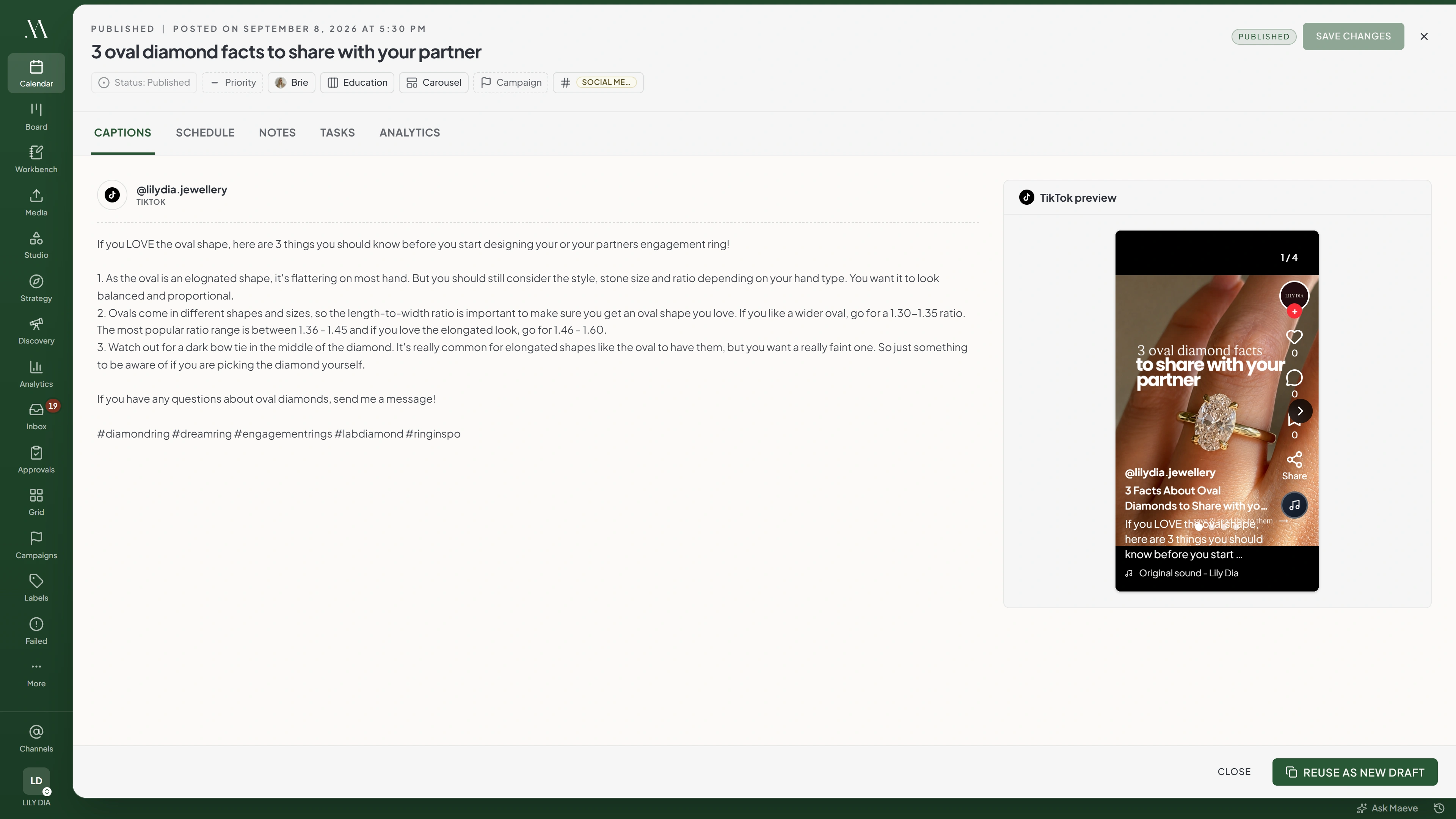
Use Notes to work on a brief with your team, Tasks to track related work, and the toolbar to assign responsibility and organize the post.

Notes
Client asked for the launch date in the caption. Swapped the second image for the one from the shoot.
Nothing is locked while someone else is in it, and work done offline is held on your machine and merged when the connection comes back.
Two People in One Post
Use Notes for simultaneous editing. Changes appear as you type, and the other person's cursor shows their name. Offline changes sync when the connection returns.
The initials at the top show other collaborators present in the post. This indicator does not tell you which field they are editing.
Notes
Open Notes and add the brief, client requests, or other working context. Notes save automatically and apply to the whole post.
Notes are internal. They are not published to social platforms or shown as client review comments.
Linked Tasks
- Open Tasks in the post.
- Enter a title to create a linked task.
- Open the task to add its other details.
The new task appears in the task board's backlog and remains linked to the post. You need Manager or Editor access to create tasks. Creators can view the linked tasks but cannot add them here.
Opening Notes or Tasks on a new draft saves the post first.
The Fields Along the Top
Use the toolbar above the tabs to organize the post:
- Status. Select Idea or Draft. Other statuses are calculated from the selected channels' publishing states
- Priority. Urgent, high, medium or low
- Assign. Who is responsible for it
- Pillar. The content theme it belongs to
- Format. The kind of content it is
- Campaign, and the phase within it, both of which only appear once the workspace has a campaign to put the post in
- Labels
An approval chip joins them on the right once the post is in a review.

A new post
Only Idea and Draft can be picked. Everything past that is worked out from the channels on the post rather than set by hand.

Where each one lands
| Field | Board filter | Calendar filter | Shows on a card | Reporting |
|---|---|---|---|---|
| Labels | Yes | Yes | Yes | Yes |
| Pillars | No | No | Yes | Yes |
| Formats | No | No | Yes | Yes |
| Campaign | No | No | No | No |
None of the four change what publishes. Hashtags sit on the same taxonomy screen and are the exception: those go into the caption.
Use Labels to filter posts on the content board and calendar. Set Pillar and Format to categorize the post for reporting. Use Campaign to group it with related work.
Sending the Post for Review
Use Notes for internal working context. When the post needs a decision, request a review from the Schedule tab. Review comments and decisions are kept separately from Notes.
Questions
Can two people edit the same post at once?
You can edit Notes together. Edit captions one person at a time because simultaneous caption edits can overwrite each other.
Why can I not see who else is in the post?
The initials appear when other editing collaborators are present. View-only visitors are not included.
Are notes on a post published anywhere?
No. Notes remain internal to Maeve and are not published or shown as client review comments.
What is the difference between a note and a review comment?
Notes hold internal working context. Review comments provide feedback from your team or your client during a review.
Do tasks created in a post appear on the task board?
Yes. They appear in the backlog and stay linked to the post. Creating them requires Manager or Editor access.
What are pillars and formats for?
Use pillars for content themes and formats for content types. They support reporting. Use labels when you need to filter posts on the board or calendar.
Can I assign a post to someone?
Yes. Use Assign in the toolbar above the tabs and select the responsible person.
Does adding a label change anything about how the post publishes?
No. Labels organize the post inside Maeve. Hashtag groups insert text into the caption and are published with it.