
Writing One Post for Every Channel
Updated
Select the accounts you want to publish to, then write a shared caption. Edit an individual channel's caption when it needs different wording.
Picking Channels
- Select a platform in the channel row. Maeve selects the account you used last.
- Open that platform's caption section to check the selected accounts.
- Select any additional accounts you want to include.
Turning a network off in the top row removes it from the post. Maeve keeps the caption, media and settings you had chosen for that network in the draft, so they come back if you select it again.
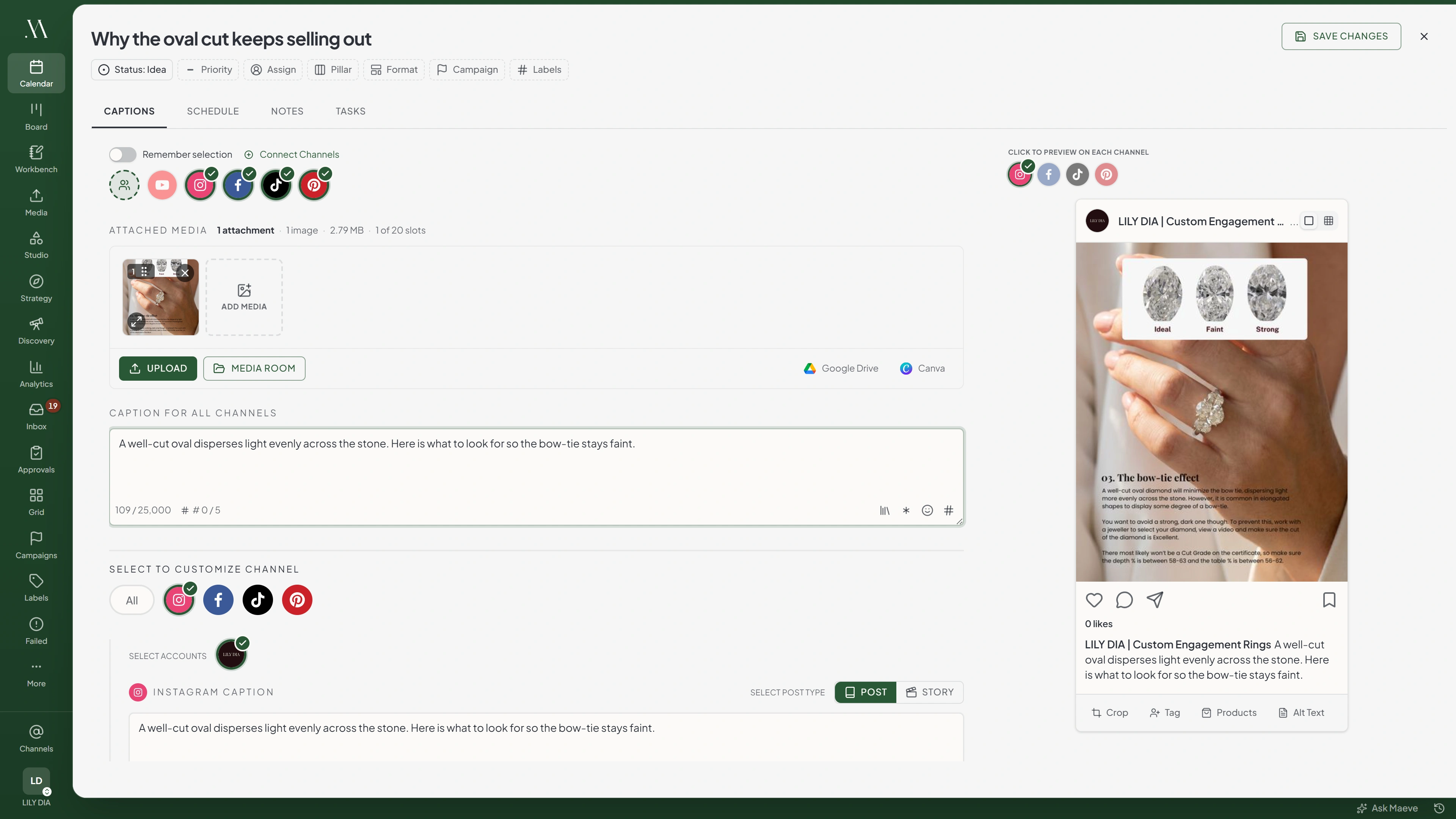

Select channels
Connect ChannelsGoing to 3 channels.
Apply a channel group to add a saved set of accounts to your selection. Accounts you already selected remain selected.
Writing the Shared Caption
Enter your text in the shared caption field. Selected channels use this text until you edit their captions separately.

- 1One caption
- 2One channel edited
- 3Shared caption reworded
Caption for all channels
October bookings are open. Two Saturdays left.
46 / 25,000Select to customize channel
Instagram Caption
October bookings are open. Two Saturdays left.
46 / 2,200FB Caption
October bookings are open. Two Saturdays left.
46 / 5,000LinkedIn Caption
October bookings are open. Two Saturdays left.
46 / 3,000Changing One Channel
- Select the channel whose caption you want to change.
- Edit its caption, such as shortening the text for Threads.
- Check that channel's preview.
That channel keeps its own wording when you change the shared caption. Channels you have not edited continue to follow the shared caption.
To make a channel follow the shared caption again, replace its text with the current shared caption. The text must match exactly. Clearing the field creates an empty caption for that channel.
When Only One Channel Is Picked
With one platform selected, write directly in its caption field. Maeve shows the shared caption field when you add a second platform.
Select channels
Caption for all channels
October bookings are open. Two Saturdays left.
46 / 25,000Select to customize channel
Instagram Caption
October bookings are open. Two Saturdays left.
46 / 2,200LinkedIn Caption
October bookings are open. Two Saturdays left.
46 / 3,000What Else Changes Per Channel
Each platform has its own media selection and settings. For example, select different images for Instagram and LinkedIn, or set YouTube visibility separately.
The Post, Story, and Reel toggle is shared across the draft. Changing it under Instagram also changes it for Facebook. Create separate posts if those platforms need different post types.
Instagram Caption
Select Post Type
October bookings are open. Two Saturdays left, link in bio.
59 / 2,200Media for Instagram
1 of 10 selectedSelect allClearInstagram Settings
Cover image
Share to feed
Trial reel
Add music or original sound
Check the channel management guides for each platform's available settings.
Before You Schedule
Open Schedule when the channel versions are ready. Choose Publish now, set a date and time, or select a review workflow.

Publish Time
Posting Friday, October 3rd at 9:00 AM
Resolve validation errors for every selected channel before confirming. If you need to publish the other channels first, remove the affected channel and create a separate post for it.
Questions
Do I have to write a separate post for each network?
No. Select your accounts and write a shared caption. Edit a channel separately when it needs different wording.
If I edit the caption for one channel, does it change the others?
No. It changes that channel only. The channel then keeps its own text when you edit the shared caption.
How do I make a channel follow the shared caption again?
Replace its text with the current shared caption so they match exactly. Leaving the channel field empty creates an empty caption.
Why has the caption for all channels disappeared?
Only one platform is selected. Add a second platform to show the shared caption field.
Does applying a channel group replace the channels I already picked?
No. It adds the group's accounts to your current selection.
What happens if a channel is disconnected while I am writing?
Maeve removes that account from the post. The other selected accounts remain.
Can one post go to two accounts on the same network?
Yes. Open the platform's caption section and select the accounts you want to include.