
Connecting Your Social Channels
Updated
Open Settings, then Social channels, to connect an account to your workspace. You need the Manager role to connect accounts directly.
Select a platform, sign in on its own website, and approve access for Maeve. You enter your password on the platform's sign-in page. Maeve does not receive or store it.

- 1Pick the network
- 2Approve on the network
- 3Connected
Connect available channels
3 / 20Before You Start
Check that you have access to the account and that its type is supported:
| Network | You need to be | Account type |
|---|---|---|
| The account holder, plus Page admin if you connect through Facebook | Business or creator | |
| Page admin | Business Page | |
| The profile owner, or hold a posting role on the Page | Page or profile | |
| X | The account holder | Profile |
| Threads | The account holder | Profile |
| TikTok | The account holder | Business or creator |
| YouTube | Channel owner or manager | Any channel |
| The account holder | Business or profile | |
| Google Business Profile | Manager of the location | A location |
Who Can Connect
You need the Manager role to connect, rename, re-sync, or disconnect a channel. If you do not have this role, ask a workspace Manager to connect it.
On Standard and Premium, Editors can generate a client connection link so the account owner can connect their accounts. Follow the client connection steps below to create one.
Approving on the Network
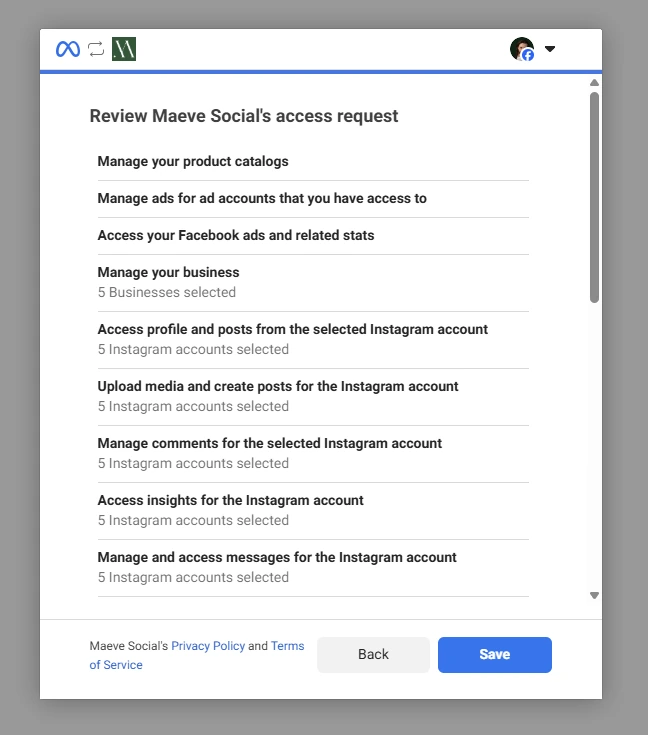
Approve the requested permissions on the platform's access screen. Missing permissions can prevent the connection or stop related features from working.
Choosing the Right Account
If your login has access to several accounts, select the ones you want to add to this workspace.
Back from Facebook
Select Facebook Pages
Pick the Pages to add to this workspace.
- The Flour Shop
- The Flour Shop Cafe
- Flour Shop WholesaleConnected
- The Flour Shop EventsCan't add yet
Your Facebook login doesn't have full access to this Page. Ask whoever runs the Page to give you full access on Facebook, then connect Facebook again.
When only one account comes back, this screen submits itself and you never see it.
Accounts already in the workspace are marked Connected and cannot be added twice. If only one account is available, Maeve selects it automatically.
If a Facebook Page shows Can't add yet, ask the person who manages the Page to give you full access, then try connecting again.
What Counts Against Your Limit
A connection is one account on one platform. Maeve counts connections across workspaces. If you want to free up a connection, you'll need to disconnect it.
When a Connection Breaks
A platform may expire your connection and require you to sign in again. Maeve emails you when an account needs reconnecting.
You may also need to reconnect after changing your password, removing Maeve's access in the platform settings, or losing permission to manage a Page.

Your connected channels
2Your Company
LinkedIn PageYour Name
Needs reconnectingThis account got signed out. Reconnect it to keep publishing.
To reconnect:
- Open Settings, then Social channels.
- Find the account marked Needs reconnecting under Your connected channels.
- Select Reconnect and complete the platform's sign-in and permission steps.
Reconnect the same account to keep its scheduled posts attached. If the platform reports a permission problem, restore your access to the account before trying again.
Removing a Channel
- Open Settings, then Social channels.
- Find the account and select Disconnect.
- Check the scheduled post count in the confirmation dialog before confirming.

Disconnect, with and without a queue
Disconnect account
Disconnect The Flour Shop?
This account has 3 scheduled editions. They will not publish unless this account is reconnected.
Disconnect account
Disconnect Flour Shop Wholesale?
No scheduled content will be affected. Connection-specific configuration may be lost.
Scheduled posts stay in the queue after you disconnect. They will fail if the account is still disconnected when their publish time arrives.
Connecting the same account again restores the connection to its queued posts. Posts whose publish time has already passed need your attention separately.
Letting a Client Connect Their Accounts
On Standard and Premium, you can send your client a connection link. They do not need a Maeve account or access to your workspace. You need the Manager or Editor role to create the link.
- 1
Open the client connection link panel
Go to Settings, then Social channels, and find Client connection link.
- 2
Choose the platforms
Select the platforms your client needs to connect. Google Business Profile is not available through client connection links.
- 3
Generate and send the link
Select Generate link, then Copy link. Send the link to your client. Maeve does not email it for you.
Settings, Social channels
Client connection link
- 1
Choose the platforms your client can connect
Your client only sees the platforms you pick here. Changes apply when you generate a new link.
Instagram, Facebook Page, TikTok
- 2
Share the link with your client
They open it in a browser and connect their accounts. No Maeve Social account needed.
Active· Expires 11 Oct 2026
app.maevesocial.com/connect/3f9c8ad2
Copy linkRegenerate linkRevoke
- 3
See what your client has done
Viewed 3 times. Last viewed 12 Sep 2026, 09:19.
- Account connected — @theflourshop12 Sep 2026, 09:21
- OAuth started — instagram12 Sep 2026, 09:20
- Link viewed12 Sep 2026, 09:19
- Link created11 Sep 2026, 16:02
Standard and Premium only, and only a manager or an editor can generate one.
The link expires after 30 days. Each workspace has one active link at a time. Select Regenerate link to replace it, then send the new URL to your client. The previous URL will stop working.
Your client opens the link, selects a platform, and signs in on that platform to approve access. The accounts they connect are added to your workspace.
Connect your accounts
This is a secure way to connect your accounts. You log in on each platform's own site, so we never see or store your password.
Connect available channels
Your connected channels
1@yourbrand
Open Show activity log in the link panel to check whether your client has opened the link or connected an account. Failed connection attempts appear there too.
Your client can disconnect accounts they added through that link. This removes the connection from your workspace, so scheduled posts can fail. A replacement link only lists accounts connected through that new link.
Questions
Does Maeve store my social passwords?
No. You sign in on the platform's own page and approve Maeve's access. To remove that access, use the platform's settings or disconnect the account in Maeve.
Does Instagram need a Facebook Page?
No. You can connect a business or creator account directly through Instagram. Connect through Facebook if you need collaborator tags, product tags, or music. That option requires a linked Facebook Page.
Why can I not connect an account?
Check the message on the platform tile. Manager only means you need a workspace Manager to connect the account. If you have reached your organization's connection limit, disconnect an unused account or change your plan.
Can the same account be connected in two workspaces?
Yes. Open each workspace and connect the account separately.
What happens to scheduled posts when I reconnect?
They stay attached to the account. Complete the reconnection before their publish time so Maeve can publish them.
What happens to scheduled posts if I disconnect?
They stay scheduled but will fail if the account is disconnected when they are due. Maeve shows the affected post count before you confirm.
Why did my connection stop working?
The platform may have expired or revoked Maeve's access. Password changes, removed permissions, and changes to your Page access can also require you to reconnect. Check the error beside the account in Settings, Social channels.
Why do the two channel counts differ?
The count above the connection grid includes every connection in your organization. Your connected channels only counts accounts in the current workspace.
Can a client connect an account without a Maeve login?
Yes. On Standard and Premium, a workspace Manager or Editor can generate a client connection link in Settings, Social channels. Send the link to your client so they can connect their accounts.