
Deleting and Restoring Media
Updated
Use Delete to move a file to the Bin for seven days. Restore it from the Bin before then, or use Delete forever to remove it and free its storage.
Checking Usage First
- Open the file in Media Room.
- Select the Usage tab.
- Review its current placements. Use Open post to inspect a post before removing media it needs.
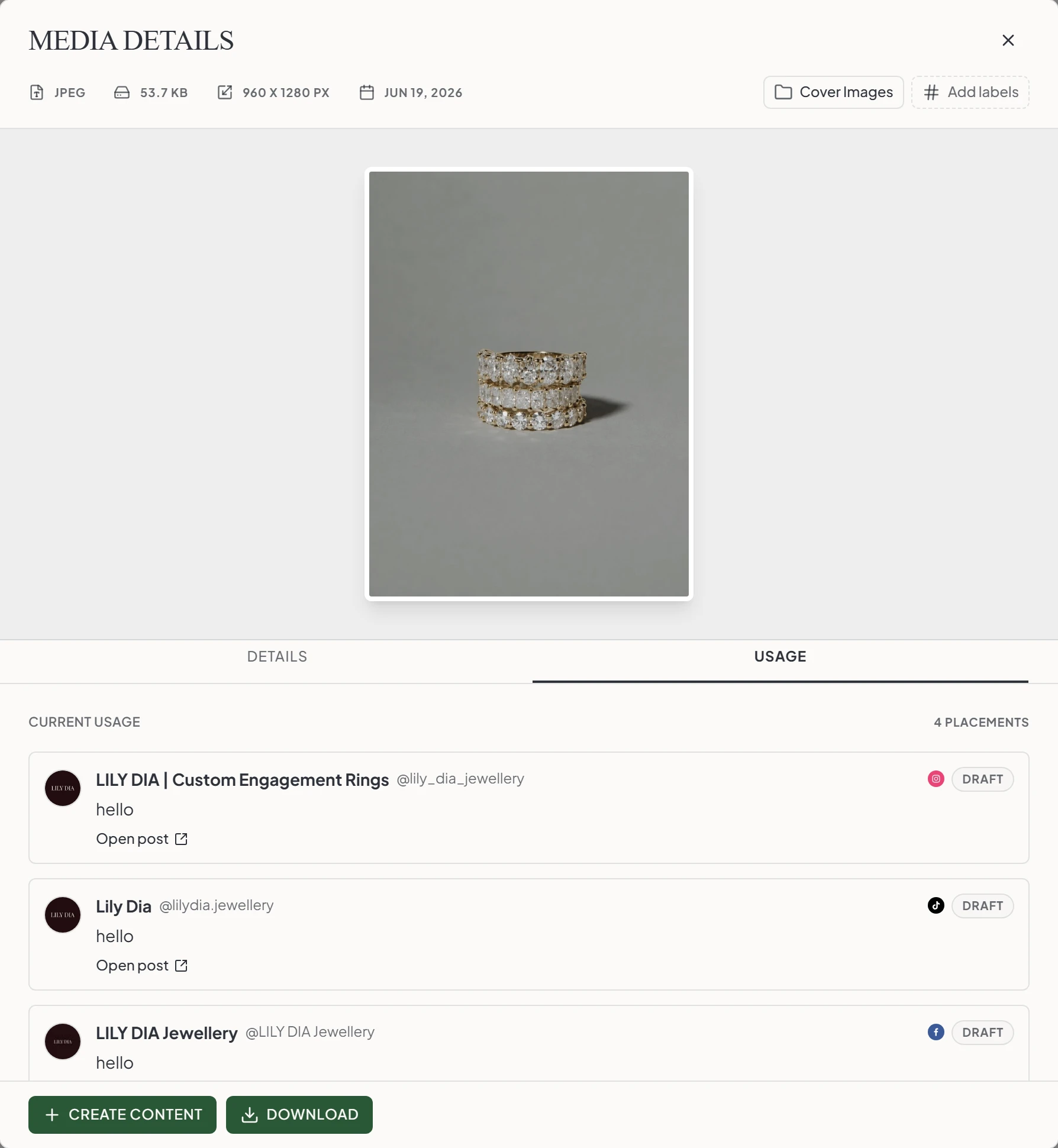
- 1How many placements this file currently has.
- 2The state of each post the file is in.
- 3Open post jumps straight to it on the calendar.
Usage history appears below current usage. It can include previous placements and posts deleted on the platform.
No current usage means the file has no current placements in this workspace. Check whether you still need the file before removing it.
Media on Scheduled Posts Cannot Be Removed
Maeve blocks deletion when a file is attached to a scheduled post. Remove it from that post or wait until the post publishes, then try again.
Drafts, posts awaiting approval, and failed posts do not receive the same protection. Check their media before deleting a file you still intend to publish. For a bulk action, review the message identifying how many selected files are blocked.
Moving Files to the Bin
- Select the file or files in Media Room.
- Choose Delete in the selection toolbar.
- Review the confirmation and choose Move to bin.
The files move to Bin and continue to count toward your storage.
Open Bin in the Media Room sidebar to review them. Maeve permanently removes them after seven days. Restore anything you need before that period ends.
Restoring
- Open Bin in the Media Room.
- Select the files you want back.
- Choose Restore.
The files return to the library. Restore is available only for files still in the Bin, not for permanently deleted files.
Deleting Forever
- Open Bin and select the files you no longer need.
- Choose Delete forever.
- Review the confirmation and confirm permanent deletion.
This removes the files and frees their storage. You cannot undo it. Files must be in the Bin before you can delete them forever.
Which to Use
| Action | Storage | Can You Undo It? |
|---|---|---|
| Delete | File continues to use storage in the Bin | Yes, before permanent deletion |
| Delete forever | File storage is freed | No |
Use Delete when you want time to reconsider. To free space immediately, delete files forever from the Bin.

- In the library
- In the Bin
- Deleted forever
Storage used
62 GB of 100 GB
Listed, file on disk, space in use
A file on a scheduled post cannot be deleted. A draft does not protect it, and neither does a post waiting for approval.
Questions
How do I check whether a file is still being used?
Open the file and select Usage. Review the current placements and use Open post to inspect an attached post. Previous placements appear in the history below.
What is the difference between Delete and Delete forever?
Delete moves the file to the Bin for seven days, where it still uses storage and can be restored. Delete forever removes a file in the Bin permanently and frees its storage.
Can I restore a file I deleted forever?
No. You can restore only files that are still in the Bin.
Why can I not remove a file?
A file attached to a scheduled post cannot be deleted. Remove it from the post or wait until the post publishes, then try again.
Do drafts stop me deleting a file?
No. Check drafts, posts awaiting approval, and failed posts before removing media they may still need.
Does deleting a file free up space straight away?
No. A file in the Bin still uses storage. Space is freed when you delete it forever or Maeve removes it after seven days.
What happens to posts that already published with a file I removed?
Removing library media does not remove posts already published on a social platform.