
Month, Week and List
Updated
Use the view control at the top right of the calendar to choose Month, Week, or List. Your filters stay applied when you switch.
Month
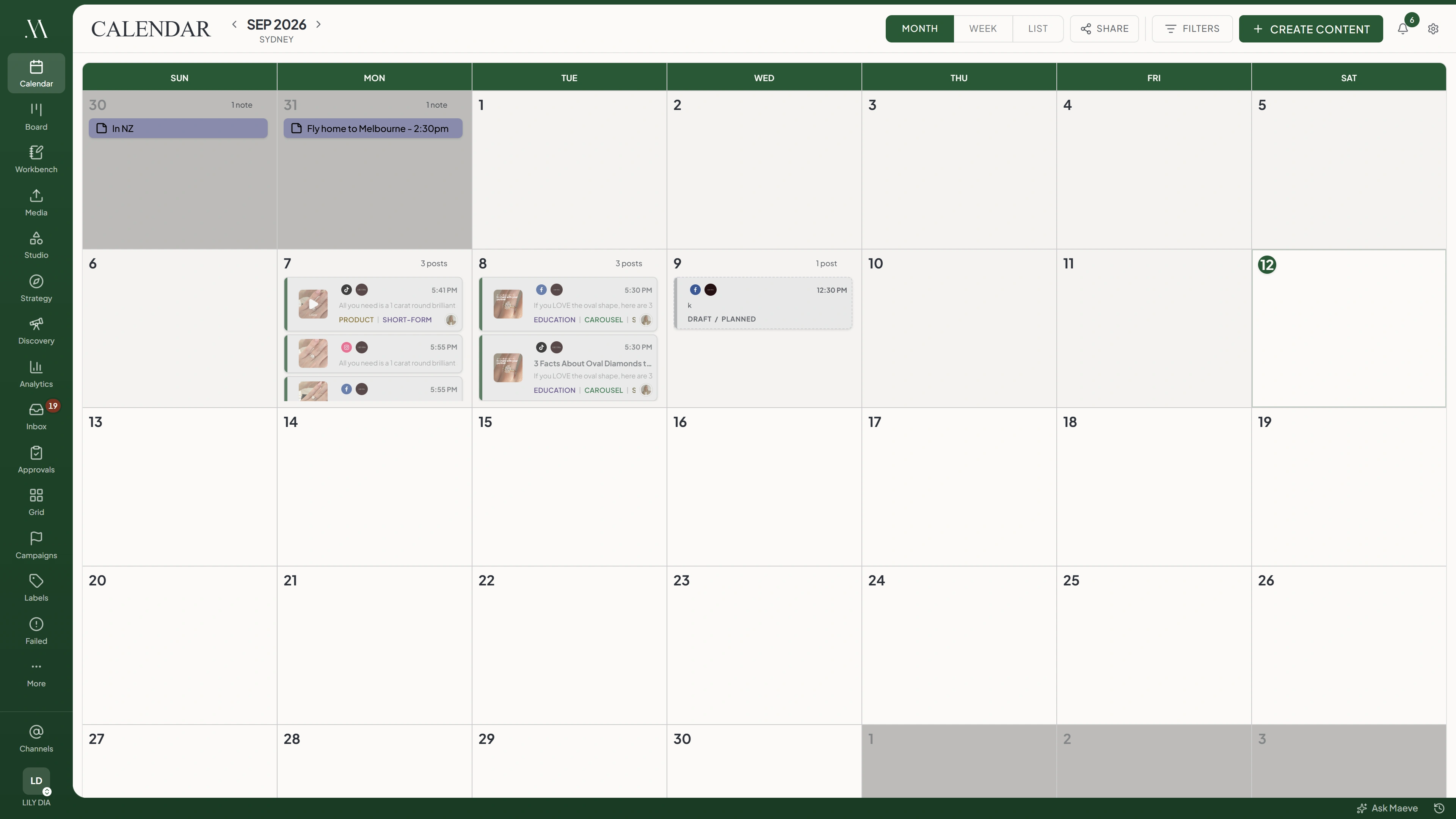
Use Month to review the distribution of posts across the month.

- Month
- Week
- List
Oct 2026
Sun
Mon
Tue
Wed
Thu
Fri
Sat

Shoot day
Invoice the mill
Three weeks of it. The real grid runs four to six rows depending on where the first of the month lands.
Each day shows separate counts for posts, notes, and tasks. Notes appear first, followed by tasks and posts.
Post tiles show the scheduled time, accounts, media thumbnail, caption, labels, and assignee. Scroll within a day to see items that do not fit in its cell.
Week
Use Week to review posts by day and time block. Each day has twelve two-hour blocks, covering the full day.

- Month
- Week
- List
Week of Sep 27
Sun - 27
Mon - 28
Tue - 29
Wed - 30
Thu - 1
Fri - 2
Sat - 3
Notes
Shoot day
12 AM
2 AM
4 AM
6 AM
8 AM
10 AM
12 PM
2 PM
4 PM
6 PM
8 PM
10 PM
Twelve blocks, midnight to ten at night, every one of them drawn whether or not anything is in it.
Posts at 8:00 and 9:00 appear in the same block. Read the time on the tile for the exact schedule.
Notes and enabled task due dates appear above the time blocks in the Notes row.
List
Use List to work through posts grouped by status: In Queue, Drafts, Needs Approval, and Posted.

- Month
- Week
- List
Oct 2026
- All12
- In Queue5
- Drafts3
- Needs Approval1
- Posted3
Notes2
In Queue5
Drafts3
Posted3
Notes come before every post group, and Posted arrives collapsed.
Posts with changes requested appear under Needs Approval. Failed and canceled posts appear under In Queue when failures are included.
Use the density control at the top right to switch layouts:
- Compact: A table with columns and collapsible status groups.
- Comfortable: Cards without table columns.
The columns depend on the status group. Drafts show their last edited date, and approval rows show review progress.
Notes and Tasks
Calendar notes appear with their day in Month, above the time blocks in Week, and in a separate group at the top of List.
To include tasks, open Filters and turn on Tasks. The setting is saved for the workspace. Tasks appear in day cells, the Notes row in Week, and their own group in List.
In List, select All statuses to show notes and tasks. Selecting a specific post status hides those groups.
Switching Between Them
Select the view at the top right, before Share and Filters. Maeve saves your choice for each workspace. A view specified in a calendar URL takes precedence when you open that link.
Switching views keeps the selected date. Navigating to another month selects its first day, so switching to Week afterward shows the week containing that day.
List covers the month grid's date range, including the days from neighboring months needed to complete its weeks.
Questions
What is each calendar view for?
Use Month to review dates across the month, Week to review two-hour time blocks, and List to work through posts by status.
Is week view an hourly agenda?
No. Each row covers two hours. Read the time on each post for its exact schedule.
Do filters carry between views?
Yes. Your selected filters remain applied.
What period does the list cover?
The month grid's date range, including neighboring days that complete its weeks.
Why does the month grid show days from other months?
The grid includes complete weeks. Days outside the selected month are dimmed but can still contain posts.
Where do notes appear?
With their day in Month, above the time blocks in Week, and in their own group in List. List requires All statuses to show them.
Why can I not see tasks on the calendar?
Open Filters and turn on Tasks. In List, also select All statuses.
What does the density control on the list do?
It switches between a compact table and comfortable cards.
Why did my post turn into three rows?
Published posts have one row per channel. Queued posts use one row for all channels.
Does switching view take me back to today?
No. It keeps the selected date. After navigating to another month, that date is the first of the month.
Which view should I use to reschedule things?
Use Month or Week to drag posts. In any view, open a post to change its schedule.