
Notes on the Calendar
Updated
Add a calendar note for a reminder tied to a date, such as a filming day or client deadline. Use a post's Notes tab for context tied to that specific post.
Adding One
- Find the day in Month or Week view and select its + button.
- Select Add note.
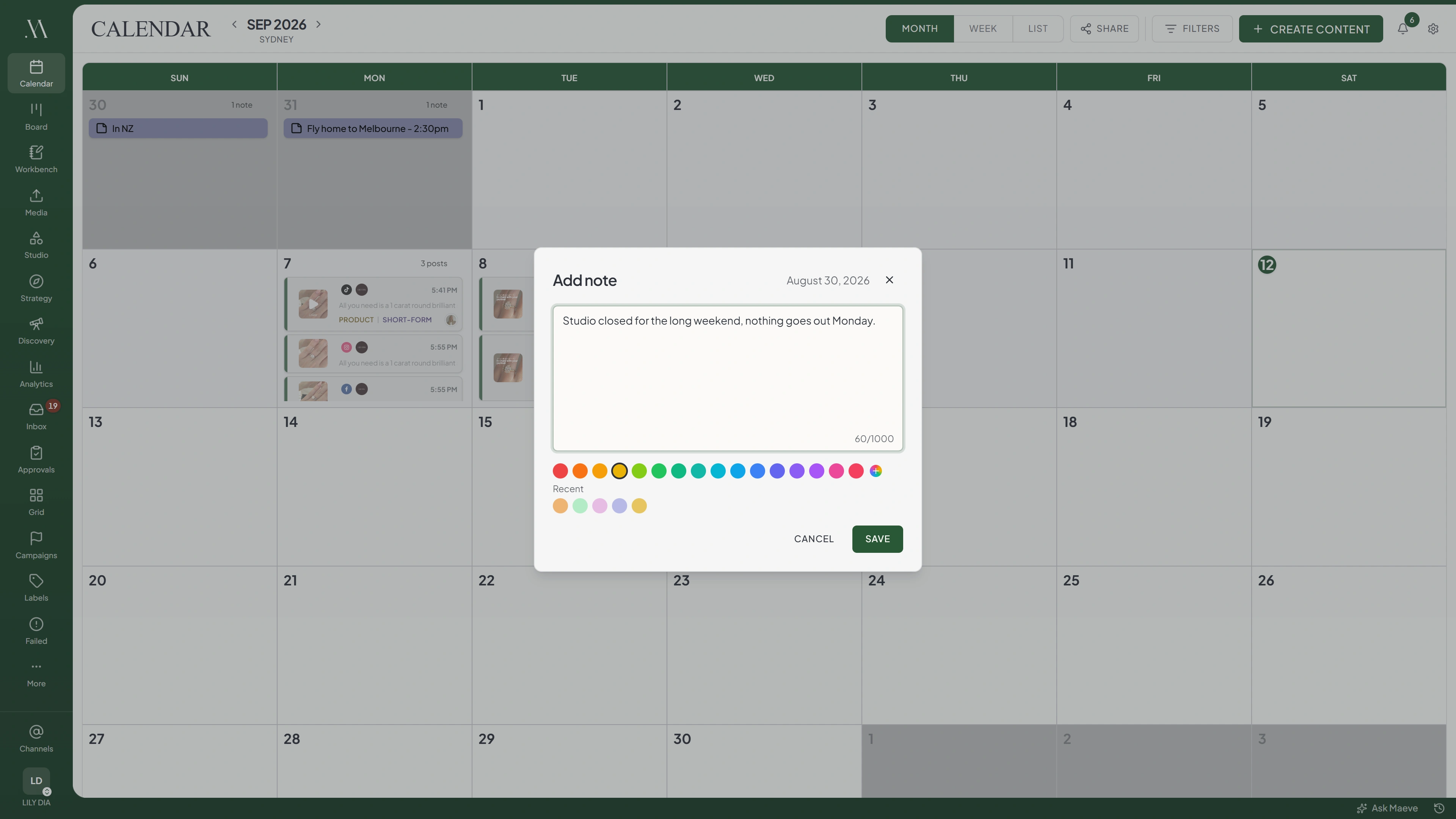
- Enter the reminder and choose a color.
- Select Save.

Adding a note to Thursday
The only way in
1
- Create content
- Add note
Hidden until you hover the day, and always shown on a touch screen.
Add note
October 1, 2026
Add a reminder for this day
Save is off until there is something to save. Delete joins the row only once the note exists, at the far left of it, and takes effect with nothing asking.
A note contains up to 1,000 characters, a color, and one date. It does not have a separate title, time, or repeat schedule.
To edit a note, open it, change the text or color, and select Save. Save is disabled until something changes.
Use Cancel or the close button to discard unsaved edits. Delete removes the note immediately without a confirmation or an undo option.
Choosing a Color
Select a color from the workspace palette, a recent color, or a custom color. New notes default to yellow.
Colors do not change behavior. Agree on your own convention if the team uses colors for different reminders.
Where Notes Show
- Month: Above the day's tasks and posts.
- Week: In the Notes row above the time blocks, alongside enabled tasks.
- List: In a separate group above posts when All statuses is selected.
Month and Week show up to two lines of text. Open a note to read the rest. Switch to Month or Week to create a note; List does not offer that action.
Moving One
Switch to Month and drag the note to another day. Notes can be moved to past dates as well as future ones.
Week and List do not support dragging notes.
Notes Here Against Notes on a Post
Use the note type that matches the work:
| What | Calendar note | Note on a post |
|---|---|---|
| Attached to | A day | A specific post |
| Answers | What is happening this day | Context for this piece of content |
| Shows on | The calendar grid | The post's Notes tab |
| Text | Plain, up to 1,000 characters | Rich text, no limit shown |
| Saving | A Save button | Saves itself as you type |
Calendar notes can be included in a shared calendar. Post notes remain internal.
Who Can Add Them
Managers and Editors can add, edit, move, and delete calendar notes. Creators and Viewers can read them.
Notes belong to the workspace and are visible to its members. Changes sync for other viewers without a refresh.
Questions
What is a calendar note for?
A reminder tied to a date, such as a filming day or client deadline.
How do I add a note?
In Month or Week, select the day's + button, choose Add note, enter the text, and save. On touchscreens, the + button is always visible.
How long can a note be?
Up to 1,000 characters.
Can a note have a title, or cover more than one day?
No. A note has text, a color, and one date. It does not repeat.
Why is Save greyed out?
The note has no unsaved changes. Edit the text or color to enable Save.
Can I move a note to another day?
Yes. Drag it in Month view. Past dates are allowed.
Does the colour of a note mean anything?
Colors have no built-in meaning. Use them according to your team's convention.
Is there a way to undo deleting a note?
No. Delete removes the note immediately.
What is the difference between a calendar note and a note on a post?
A calendar note belongs to a day and uses a Save button. Post Notes belong to a specific post, support rich text, and save automatically.
Who can add calendar notes?
Managers and Editors. Creators and Viewers can read them.
Will a client see my calendar notes?
Only if you enable Include calendar notes when creating or updating a shared calendar snapshot.