
Sharing Your Calendar
Updated
On Standard and Premium, select Share to create a read-only calendar link. You need Manager or Editor access. Anyone with the link can open it without a Maeve account.
The link shows a snapshot saved when you create or update it. Later edits to the calendar are not shared until you update the snapshot.
Building a Snapshot
- 1
Open Share
Select Share at the top of the calendar.
- 2
Choose the Content
Name the snapshot and set its date range and statuses. Select platforms or accounts if you want to include only some of them.
- 3
Choose the Fields
Review which text, media, and account details will be visible. Include calendar notes only if you want to share them.
- 4
Set the Expiry and Create the Link
Choose an expiry date and select Create link. Open the copied URL to review the snapshot before sending it.
You can also filter the snapshot by labels, campaigns, pillars, or formats. Leaving those filters empty includes all posts matching the other selections.
The date range can span up to 370 days. A snapshot includes at most 2,000 posts, and drafts without a calendar date are excluded. Use a narrower range if needed.
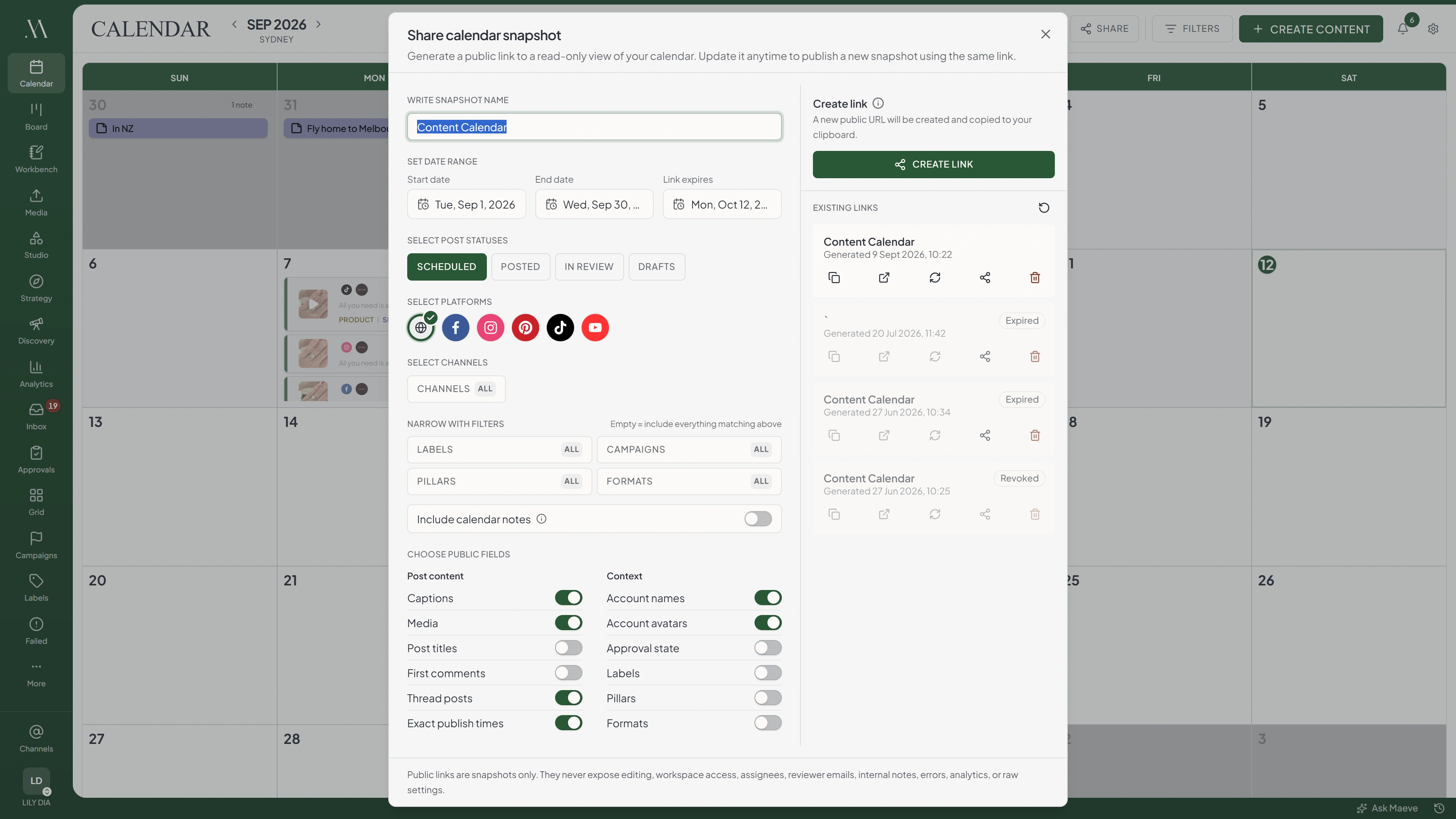

Share calendar snapshot
Write snapshot name
October for Brie
Set date range
Start date
1 Oct 2026
End date
31 Oct 2026
Link expires (locked)
31 Oct 2026
Select post statuses
- Scheduled
- Posted
- In review
- Drafts
Select platforms
Select channels
ChannelsAllNarrow with filters
Empty = include everything matching above
- LabelsAll
- CampaignsAll
- PillarsAll
- FormatsAll
Existing links
- October for Brie
Generated Sep 1, 2026, 9:14 AM
- Launch weekExpired
Generated Aug 12, 2026, 4:02 PM
- Content CalendarRevoked
Generated Jul 30, 2026, 11:20 AM
No URL, no expiry date and no view count, because nothing counts views. Fifty links are listed at a time.
Update snapshot
Same URL, new version. Nothing republishes on its own, so a post scheduled after the last update is invisible until you press it.
Choosing What Is Public
Review the field switches before creating or updating a snapshot.
Captions, media, thread posts, exact publish times, account names, and account avatars are enabled by default. Post titles, first comments, approval state, labels, pillars, and formats start disabled.
Turn off Exact publish times to show the posting day without the time.
To exclude posts awaiting approval, remove In review from the selected statuses. Turning off the approval-state field does not remove the tile's In review status.

Share calendar
Choose public fields
Post content
Context
Approval state is the one to watch. A post waiting for approval is flagged on the tile whether the switch is on or off, so keep that status out of the snapshot rather than relying on it.
Never in a public link, whatever you switch on
- Editing
- Workspace access
- Assignees
- Reviewer emails
- Internal notes
- Errors
- Analytics
- Boost data
- Raw settings
The snapshot is built a field at a time rather than copied from the post, so none of these can be switched back on by accident.
What a Snapshot Never Shows
The public snapshot does not include editing controls, workspace access, assignees, reviewer emails, internal post notes, publishing errors, analytics, ad boost data, or raw settings.
The snapshot is excluded from search indexing, but anyone with its URL can open it. Revoke a link if it should no longer be accessible.
Calendar Notes
Turn on Include calendar notes to share note text, dates, and colors. This option is off by default. Review the notes before including them.
The Link
After selecting Create link, open the copied URL to check the public view. There is no preview before creation.
To share later changes, select the existing link in the Share dialog and choose Update snapshot. The URL stays the same. Updates are not automatic.
Links default to a 30-day expiry. The expiry is fixed after creation. To extend sharing beyond it, duplicate the snapshot into a new link and send that URL. Expired links show a calendar-unavailable page.
Select Revoke to disable a link immediately. Snapshot versions remain in the audit history.
The dialog lists existing links with copy, open, and revoke actions. It does not report views or notify you when someone opens a link.
Who Can Share
Managers and Editors on Standard or Premium can create and manage calendar shares. Creators and Viewers cannot.
Questions
Does the client need a Maeve account to see the calendar?
No. Anyone with the link can open the read-only snapshot without an account or team seat.
Is a shared calendar live?
No. It shows the content saved when you created or last updated the snapshot.
How do I update a shared calendar?
Open Share, select the existing link, and choose Update snapshot. The URL stays the same.
Can I hide the exact posting times?
Yes. Turn off Exact publish times to show dates without times.
What can never appear on a shared calendar?
Internal post notes, assignees, reviewer emails, publishing errors, analytics, ad boost data, raw settings, and editing controls are excluded.
Do I need a particular plan to share a calendar?
Yes. Calendar sharing requires Standard or Premium and Manager or Editor access.
Can I tell whether my client opened the link?
No. Calendar shares do not report views or send viewing notifications.
Does a shared calendar stay up to date on its own?
No. Select Update snapshot to share changes made since the previous update.
Do my calendar notes go to the client?
Only if you enable Include calendar notes. Review their text before including them.
Can I stop a link working?
Yes. Revoke the link to disable it immediately. Links also stop working at their expiry date.