
Scheduling a Post
Updated
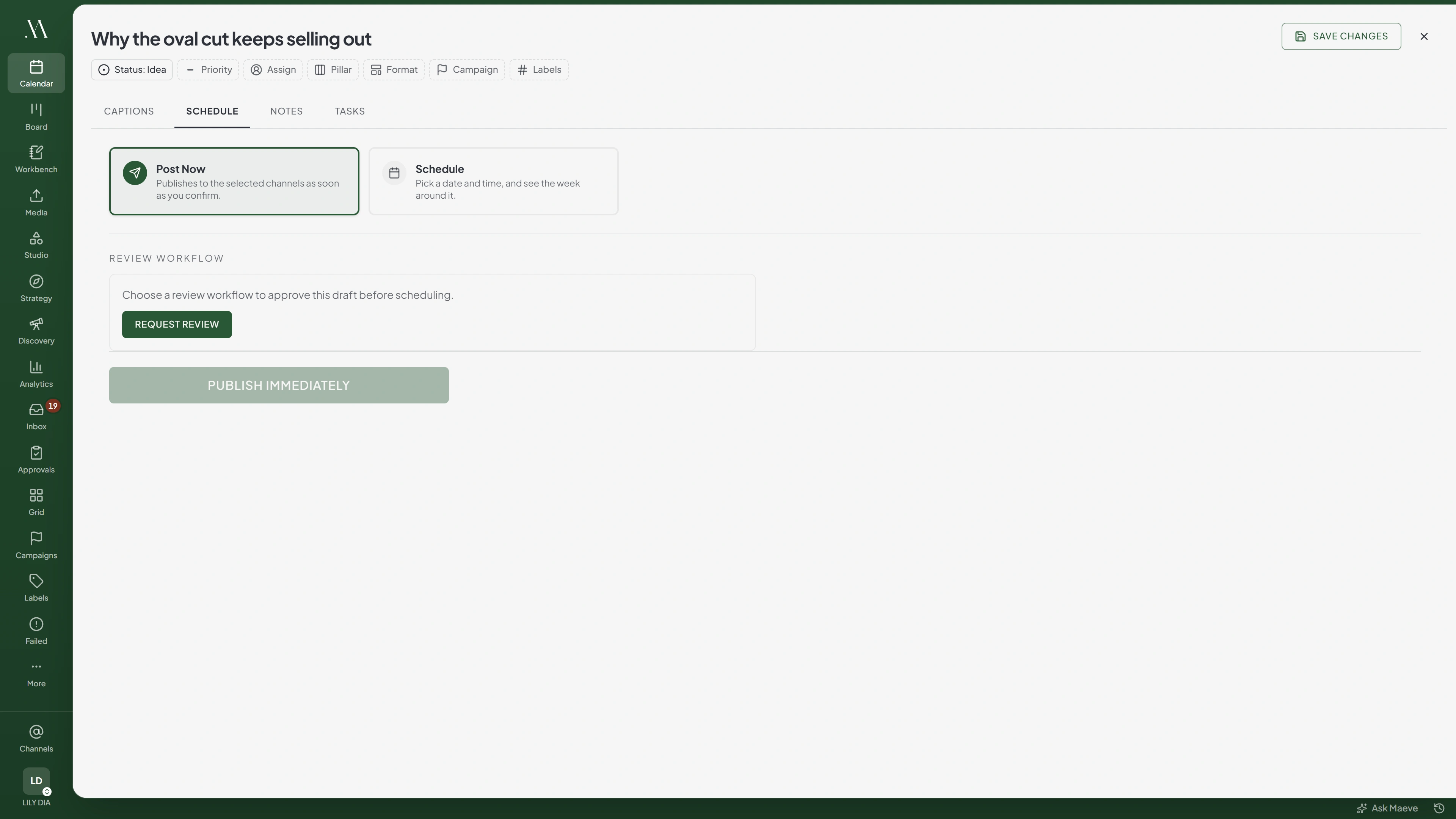
Open Schedule in the composer to publish now, schedule for later, or send the post for review. Complete the captions and media selections first.

- Captions
- Schedule
- Notes
- Tasks
October 2026
Publish Time
9:00 AM
Quarter hours only, ninety six of them, and the ones already gone are dropped from today.
Week of September 27
Sun 27
Mon 28
8:00 AMAutumn menu
Tue 29
Wed 30
12:30 PMWholesale
Thu 1
Fri 2
9:00 AMThis post
9:45 AMWeekend hours
4:00 PMBehind the bake
Sat 3
10:00 AMSourdough
“Weekend hours” is already scheduled to Instagram at 9:45 AM on this day.
Already-scheduled posts around this slot.
Post Now
- Select Post Now.
- Select Publish Immediately.
- Review the accounts and content, then confirm.
Maeve queues the post for publishing immediately. Platform processing and publishing limits can delay when it appears.
Scheduling for Later
- Select Schedule.
- Choose the date and a time from the list.
- Check the nearby posts in the week strip.
- Review the confirmation and schedule the post.
The time list uses 15-minute intervals, such as 9:00, 9:15, and 9:30. Times are interpreted in the workspace timezone. The picker defaults to tomorrow at 8:00 AM.
Checking Nearby Posts
The week strip shows other scheduled posts and marks the current draft as This post. Select another day to move it there.
Maeve warns when another post targets the same platform within an hour of the selected time. This warning does not block scheduling.
Choosing a Future Time
Choose a time that has not passed in the workspace timezone. Past times are removed from today's list or flagged below the time field, and you cannot confirm them.
Sending It for Review Instead
On Standard and Premium, the Review row in Schedule shows the approval workflow that applies to the post, if there is one. Select Request review or Change to pick a workflow, Choose people myself, or No review. A required workflow cannot be skipped. Team reviewers belong to your workspace. Client reviewers get an emailed link and do not need an account.
The post keeps its selected time, but publishing is paused until approval. If the time has passed by the final approval, the post is approved without a time, and someone who can schedule picks a new one.
Editing the content sends it back to the first stage of its review. Changing only the time keeps its approvals.
Confirming
Review the selected accounts, content, settings, and time before confirming.

Review before publishing
- Instagram@theflourshop2
- Format
- Reel
- Caption
- Main: October bookings are open. Two Saturdays left.
- First comment
- Added
- Collaborators
- 2
- Pinterest@theflourshop1
- Board
- Autumn season
- Destination link
- theflourshop.co.uk/book
- Alt text
- Added
- LinkedInThe Flour Shop1
The Flour Shop needs reconnecting, and the others will still publish.
- Caption
- A longer version for a work audience.
Reconnect any account flagged as needing reconnection before publishing. The warning does not block other accounts, but the disconnected account can fail.
After It Is Scheduled
The post appears on the calendar and publishes from Maeve at its scheduled time. You do not need to keep the app open or your computer on.
After the scheduled time
When it goes cleanly
1Scheduled
On the calendar, waiting. Nothing of yours needs to be running.
2Publishing
Your content is being published now.
3Published
Live on the network, with the link back to it on the post.
What else it can say
Queued
Due content is waiting for the next publishing worker.
Still publishing
Publishing hit a temporary issue and will retry automatically.
Needs attention
The publish window was missed and user recovery is needed.
Failed
The network refused it, or the retries ran out. Fix and retry.
Check the status for each account. Maeve retries temporary publishing errors automatically. Still publishing means processing or recovery is still in progress. Errors that require a change to the post or connection can fail without further retries.
One account's failure does not stop the others. Open Failed Posts to read an error and correct it before retrying.
Allowances That Hold a Post Up
Platforms limit how much an account can publish. If Maeve reports that an account has reached its allowance, check the next available time in the message and schedule for a later slot.
Some publishing limits delay a queued post until allowance becomes available. Check the post's status before retrying or creating a duplicate.
Questions
What is the difference between Post Now and Schedule?
Post Now queues the post immediately. Schedule queues it for the date and time you select. Both depend on platform processing.
Do I need to be online when a scheduled post publishes?
No. Maeve publishes scheduled posts without your computer or browser being open.
Can I schedule a post for a time that has already passed?
No. Choose a future time in the workspace timezone.
How far ahead do I have to schedule?
There is no minimum notice period. Choose an available future time from the list.
Why can I only pick times on the quarter hour?
The time picker uses 15-minute intervals and does not accept a custom time such as 9:20.
What timezone is the scheduled time in?
The workspace timezone. Check the calendar header or workspace settings before scheduling.
My post says Still publishing. Has it failed?
Not necessarily. Publishing or recovery is still in progress. Check the account status before retrying.
What happens if one channel fails at publish time?
The other accounts can still publish. Check the failed account in Failed Posts and resolve its error.
Can I send a post for approval and still have it scheduled?
On Standard and Premium, the post keeps its chosen time while publishing waits for approval. If the time passes first, the approved post needs a new time.
Why is a channel flagged on the confirmation screen?
The connection needs attention. Reconnect the account before publishing to it.
Does Maeve suggest the best time to post?
The scheduling panel uses the time you select. Check posting-time information in Analytics before choosing a slot.